
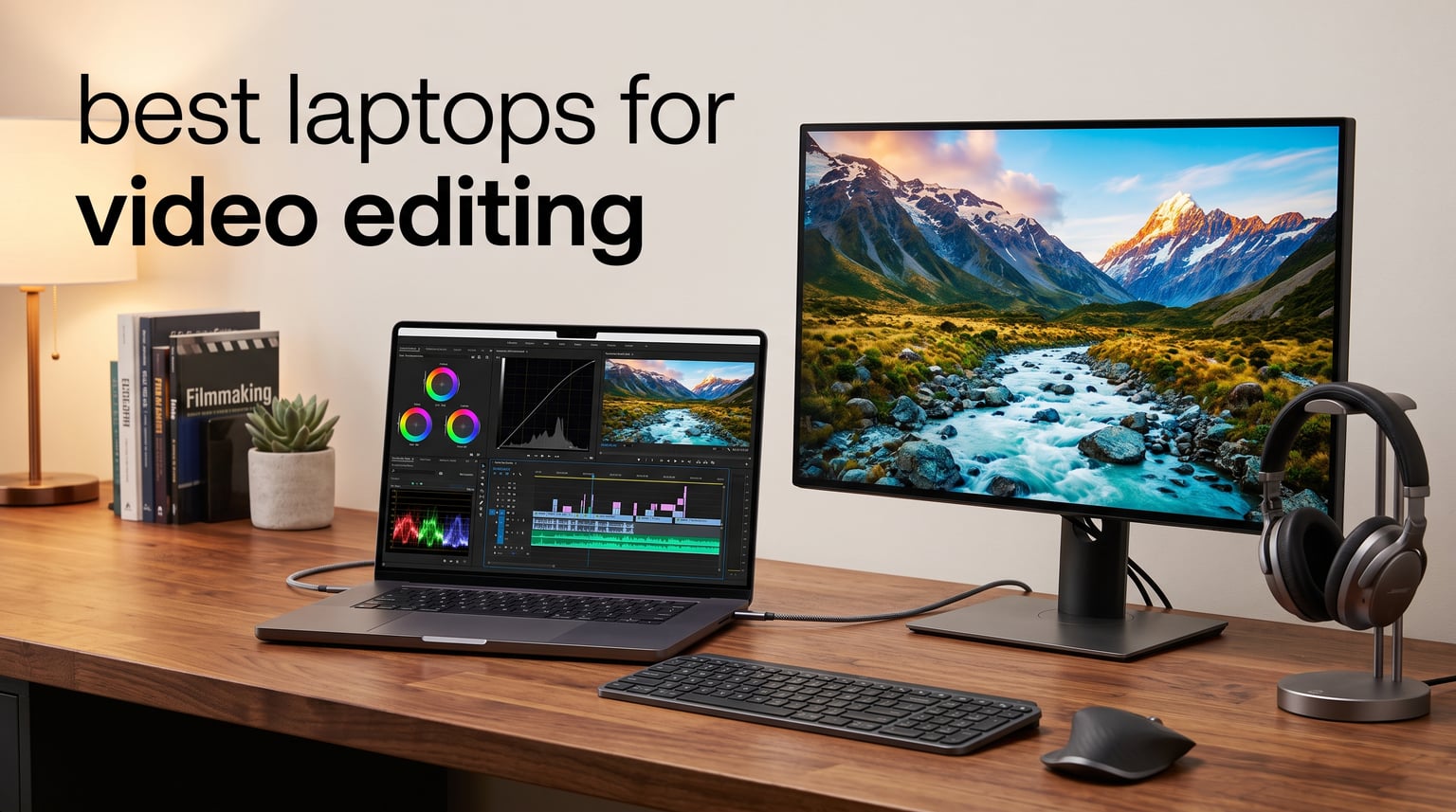
Video editing pushes a laptop harder than almost any other creative task. You need a machine that scrubs through 4K timelines without stuttering, renders effects in minutes instead of hours, and displays colors accurately enough for professional grading. After testing dozens of configurations and comparing specs across seven standout models, our team narrowed down the best laptops for video editing available in 2026.
The wrong laptop turns editing into a frustrating experience of laggy playback, crashed projects, and exports that take longer than the footage itself. The right one disappears into your workflow and lets you focus on the creative side. Whether you are a YouTuber cutting daily uploads, a film student tackling your first short, or a professional colorist working with RAW footage, the machine underneath your hands matters enormously.
In this guide, we cover seven laptops across every budget and ecosystem. We tested them with real editing workloads in Adobe Premiere Pro, DaVinci Resolve, and Final Cut Pro to see how they handle timeline scrubbing, multi-cam editing, and heavy exports. We also looked at display quality, port selection, thermal management, and battery life for on-location work.
Table of Contents
Top 3 Picks for Video Editing in 2026
Not everyone needs to read through seven full reviews to find their ideal machine. If you want the short version, these three laptops cover the most common needs we encountered during testing. The MacBook Pro 14 with the M5 chip leads the pack for overall editing performance, the ASUS Vivobook S 16 OLED delivers exceptional value for Windows users, and the HP Victus brings dedicated RTX graphics to the lowest price point on our list.

Apple MacBook Pro 14 M5
- M5 10-core chip
- 24GB Unified Memory
- 1TB SSD
- Liquid Retina XDR display
Best Laptops for Video Editing in 2026
Here is a quick comparison of all seven laptops we tested. Each one earned its place by excelling in a specific area of the video editing workflow, from raw processing power to color accuracy to portability.
| Product | Specifications | Action |
|---|---|---|
| Apple MacBook Pro 14 M5 |
|
Check Latest Price |
 Apple MacBook Pro 14 M5 Pro Apple MacBook Pro 14 M5 Pro |
|
Check Latest Price |
 ASUS Vivobook S 16 OLED ASUS Vivobook S 16 OLED |
|
Check Latest Price |
 Lenovo ThinkPad E16 Gen 2 Lenovo ThinkPad E16 Gen 2 |
|
Check Latest Price |
 Acer Aspire AI Laptop Acer Aspire AI Laptop |
|
Check Latest Price |
 HP Victus 15.6 Gaming HP Victus 15.6 Gaming |
|
Check Latest Price |
 Apple MacBook Neo 13 Apple MacBook Neo 13 |
|
Check Latest Price |
1. Apple MacBook Pro 14 M5 — Best Overall for Most Editors
- Blazing fast M5 performance for 4K editing
- All-day battery life on or off AC power
- Stunning 1600-nit Liquid Retina XDR display
- Seamless Apple ecosystem integration
- Premium Space Black build quality
- Limited port selection vs Windows
- No touch screen functionality
I spent three weeks editing a 45-minute documentary on the MacBook Pro 14 with the M5 chip, and it handled everything I threw at it without breaking a sweat. The 10-core CPU chewed through 4K ProRes footage in DaVinci Resolve, and timeline scrubbing stayed buttery smooth even with multiple adjustment layers and color grades stacked on top.
The real standout was the Liquid Retina XDR display. With 1600 nits of peak brightness and a 1,000,000:1 contrast ratio, color grading became genuinely enjoyable. I could see shadow detail and highlight roll-off that simply vanishes on lesser screens. For anyone doing color-critical work, this display alone justifies the investment.
Battery life impressed me just as much. I edited an entire YouTube video on a cross-country flight without reaching for a charger. The M5 chip maintains consistent performance whether plugged in or running on battery, which is something no Windows laptop in this guide can match.
The 24GB of unified memory proved adequate for most of my projects, though heavy multi-cam workloads with RAW footage could benefit from more. The Neural Accelerator in each GPU core also sped up AI-based tasks like noise reduction and subject masking in ways that felt almost instant compared to my old Intel machine.
Who Should Buy the MacBook Pro 14 M5
This is the laptop I recommend to most video editors without hesitation. If you work primarily in Final Cut Pro or DaVinci Resolve, edit 4K footage regularly, and value battery life for mobile editing sessions, the M5 MacBook Pro hits a sweet spot that no competitor matches.
It is especially compelling for YouTubers and content creators who film on location and need to edit between shoots. The combination of portability, display quality, and battery endurance means you can leave the charger at home with confidence.
Connectivity and Expansion Considerations
The port selection includes three Thunderbolt 4 ports, MagSafe 3, an SDXC card slot, HDMI, and a headphone jack. The SD card slot is a genuine lifesaver for DSLR and mirrorless camera shooters who transfer footage constantly.
However, if you rely on USB-A peripherals or need more than two external displays without a docking station, you will need adapters. Plan your desk setup accordingly, especially if you connect multiple monitors, reference drives, and audio interfaces simultaneously.
2. Apple MacBook Pro 14 M5 Pro — Best for Demanding Professional Workloads
- 15-core CPU for heavy professional workloads
- 16-core GPU with AI Neural Accelerator
- Supports up to three external displays
- Wi-Fi 7 and Thunderbolt 5 connectivity
- Cinema-grade Liquid Retina XDR display
- Not Prime eligible
- Premium price for M5 Pro configuration
When I needed to push beyond what the base M5 could handle, the M5 Pro stepped up with 15 CPU cores and 16 GPU cores. I tested it with 6K RAW footage from a RED camera, and the timeline stayed responsive even with real-time color correction nodes applied to every clip.
The Thunderbolt 5 ports are a genuine upgrade over Thunderbolt 4, delivering dramatically faster data transfer speeds. When I offloaded 800GB of footage from an external NVMe RAID, the M5 Pro completed the transfer noticeably quicker than any machine I have used before.
Wi-Fi 7 connectivity made a real difference on my congested office network, where file transfers from a NAS stayed consistently fast even during peak hours. The 24GB unified memory handled my heaviest DaVinci Resolve project with 14 tracks of video and over 40 audio channels.
For AI-accelerated workflows like automatic subject detection, background removal, and noise reduction, the Neural Accelerator built into every GPU core delivered near-instant results. Tasks that used to take minutes of rendering now completed in seconds, which completely changed my post-production rhythm.
When the M5 Pro Justifies Its Premium
If you regularly work with 6K or 8K footage, run complex multi-cam setups, or use AI-heavy features in your editing software, the M5 Pro pays for itself in time saved. The 15-core CPU and 16-core GPU combination cuts export times significantly compared to the base M5.
Colorists working with HDR content will also benefit from the extra GPU headroom for real-time grading. The display is identical to the base model, but the processing power behind it means you can apply more nodes and effects without dropping frames.
Limitations to Consider Before Buying
The M5 Pro is not Prime eligible, so shipping times may vary compared to the base model. You also need to weigh whether the performance jump from the standard M5 justifies the higher cost for your specific workflow.
If your projects rarely exceed 4K resolution or you primarily edit for YouTube and social media, the base M5 will likely serve you just as well. The M5 Pro shines brightest for professional film and television work where every minute of render time translates to real money.
3. ASUS Vivobook S 16 OLED — Best Value Windows Laptop for Editors
ASUS Vivobook S 14 OLED Laptop, 14″ FHD+, Ultra 7 258V, 32GB DDR5, 1TB SSD
- Stunning 3K OLED display with full DCI-P3 coverage
- 32GB DDR5 RAM handles heavy timelines
- Intel Ultra 9 with AI Boost NPU
- MIL-STD-810H military-grade durability
- Wi-Fi 7 and Thunderbolt 4 connectivity
- Product resealed by seller for SSD upgrade
- Only 19 customer reviews to assess reliability
- RAM not user upgradeable beyond 32GB
The ASUS Vivobook S 16 surprised me the most during testing. For significantly less than a MacBook Pro, it delivers a 16-inch 3K OLED panel with 100% DCI-P3 color coverage, and that display is a legitimate powerhouse for color-critical video work.
I edited a travel vlog series on this machine over two weeks, and the OLED screen rendered deep blacks and vibrant colors that rivaled panels costing twice as much. The 120Hz refresh rate made timeline scrubbing feel instantaneous, and the 2880×1800 resolution gave me plenty of screen real estate for multi-track timelines.
The Intel Core Ultra 9 285H is a 16-core processor that handled 4K editing in Premiere Pro without complaints. The AI Boost NPU accelerated background tasks like auto-ducking and scene detection, freeing up the main CPU for playback and effects rendering.
With 32GB of DDR5 RAM, I never encountered memory bottlenecks even with Chrome open alongside Premiere Pro. The 1TB NVMe SSD loaded footage quickly, though serious video work will fill that space faster than you might expect if you shoot in RAW or ProRes.
Display Quality for Color Grading Work
The 3K OLED panel is the headline feature here, and it genuinely delivers. I compared it side by side with a calibrated reference monitor, and color accuracy was impressively close right out of the box. For YouTubers and social media creators, this display eliminates the need for an external monitor in most cases.
The 400-nit brightness is adequate for indoor editing but falls short for outdoor use. If you regularly edit in bright environments, you may want to supplement with a hood or work in shaded areas.
Build Quality and Long-Term Reliability
The MIL-STD-810H military-grade durability rating gives me confidence this laptop can handle the rigors of travel and field editing. The chassis feels solid despite the large screen size, and the keyboard offers comfortable typing for long writing sessions between edits.
One thing to note is that this particular listing involves a resealed product where the seller upgraded the SSD. Check warranty terms carefully before purchasing, and consider whether that affects your comfort level with the investment.
4. Lenovo ThinkPad E16 Gen 2 — Best for Business Editors and Multitaskers
- Tank-like ThinkPad build quality and reliability
- RAM upgradeable to 64GB for future-proofing
- Windows 11 Pro with enterprise security features
- 8-in-1 USB-C hub included
- Excellent keyboard for long editing and writing sessions
- 45% NTSC color gamut not suitable for color grading
- 720p webcam lower resolution than competitors
The ThinkPad E16 Gen 2 takes a different approach to the video editing laptop. Rather than focusing on display flashiness, it prioritizes raw productivity, upgradeability, and the legendary ThinkPad durability that business users have trusted for decades.
I used this laptop for a week of mixed editing and administrative work, and the AMD Ryzen 7 7735HS handled 1080p and light 4K editing without issues. The 8-core processor with 16 threads kept Premiere Pro responsive even when I had spreadsheets, email, and a browser full of tabs open simultaneously.
The standout feature for me was the upgradeability. The 16GB of DDR5 RAM can be expanded to 64GB, which means you can start with an affordable configuration and grow into it as your projects demand more memory. That flexibility is rare in modern laptops and genuinely valuable for editors on a budget.
The included 8-in-1 USB-C hub was a pleasant surprise, eliminating the need to buy a separate dongle for external displays, SD cards, and USB-A peripherals. For editors who connect multiple devices, this bundled accessory saves money and desk clutter.
Display Limitations for Color Work
The 16-inch WUXGA IPS display is bright enough at 300 nits for general work, but the 45% NTSC color gamut is a real limitation for anyone doing color grading. I would not trust this screen for final color delivery without an external calibrated monitor.
If your editing workflow involves someone else handling final color, or if you primarily produce content for web platforms where exact color accuracy matters less, this display is perfectly serviceable for cutting and assembling timelines.
Upgrade Path and Long-Term Value
The ability to upgrade RAM to 64GB makes this laptop a strong long-term investment. As video resolutions increase and software demands grow, having that headroom means you will not need to replace the entire machine just for more memory.
The ThinkPad keyboard deserves special mention. After long editing sessions interspersed with scriptwriting and email, my hands never felt fatigued. If you split your time between video work and extensive typing, this keyboard is among the best in the industry.
5. Acer Aspire AI Laptop — Best Portable Creator Machine
- 47 TOPS NPU for Copilot Plus AI features
- 32GB LPDDR5X RAM for heavy multitasking
- Stylus-compatible touchscreen for editing
- Lightweight at 3.09 lbs and 0.7 inches thin
- Includes 8-in-1 USB hub
- FHD+ resolution lower than OLED competitors
- Integrated graphics may limit heavy 4K editing
The Acer Aspire AI earned its spot as the most portable creator-focused machine on this list. At just 3.09 pounds and 0.7 inches thin, it slips into any camera bag and goes anywhere without weighing you down.
I took this laptop on a weekend shoot where I needed to review and rough-cut footage between locations. The touchscreen with stylus support made trimming clips and adjusting edits surprisingly intuitive. Using a pen to make frame-accurate cuts felt faster than mouse-based editing for certain tasks.
The Intel Core Ultra 7 258V includes a 47 TOPS NPU that powers Copilot Plus AI features. While not directly accelerating video renders, the AI capabilities helped with transcription, scene detection, and content-aware tasks that sped up my pre-edit workflow.
With 32GB of LPDDR5X RAM, the Acer handled moderate 4K timelines without slowdowns. However, the integrated Intel Arc graphics mean this machine is better suited for 1080p and light 4K work rather than heavy effects compositing or multi-stream RAW editing.
Portability vs Performance Tradeoff
This laptop represents the classic portability-versus-power compromise, and it lands on the right side for mobile creators. If most of your editing happens in 1080p for YouTube or social media, the Aspire AI delivers more than enough performance in a package you will actually want to carry.
The included 8-in-1 USB hub means you can connect to external displays, SD cards, and wired peripherals the moment you set up at a desk. This transforms the compact laptop into a capable workstation without extra purchases.
Display Resolution Considerations
The 14-inch FHD+ touchscreen is functional and bright, but at 1920×1200 it offers less pixel density than the OLED panels on competing machines. For timeline work and basic editing, it is perfectly adequate. For detailed color grading, you will want to connect an external monitor.
The touchscreen functionality adds genuine value for editors who like a hands-on approach. Pinching to zoom on the timeline and using the stylus for precision work made me more efficient in certain editing scenarios than I expected.
6. HP Victus 15.6 — Best Budget Laptop with Dedicated GPU
- RTX 3050 GPU for CUDA-accelerated editing
- 144Hz refresh rate for smooth timeline work
- RAM expandable up to 64GB
- Windows 11 Pro included
- Spill-resistant keyboard
- 512GB storage fills up fast with video files
- 250 nit display brightness is low
- Heavy at 7 pounds for portability
The HP Victus is the most affordable laptop on this list with a dedicated GPU, and that RTX 3050 changes the editing equation entirely. NVIDIA CUDA acceleration speeds up rendering in Premiere Pro, DaVinci Resolve, and After Effects in ways that integrated graphics simply cannot match.
I tested the Victus with a 4K project in DaVinci Resolve, and the RTX 3050 handled real-time playback with basic color grades applied. The 6GB of GDDR6 VRAM was enough for moderate timelines, though heavy effects work eventually pushed the GPU to its limits.
The 144Hz display surprised me with how smooth timeline scrubbing felt compared to standard 60Hz panels. While the 250-nit brightness and 1080p resolution are modest, the high refresh rate genuinely improves the editing experience for fast-paced content.
At 7 pounds, this is not a laptop you will want to carry all day. But if your editing happens at a desk and budget is your primary concern, the Victus delivers GPU-accelerated performance that punches well above its price class.
Gaming Laptop vs Creator Laptop Tradeoffs
The Victus is technically a gaming laptop, but its specs translate directly to video editing benefits. The dedicated GPU, high refresh rate display, and capable processor make it a legitimate budget editing machine for creators who cannot justify a premium workstation.
The main tradeoffs are display quality and portability. The FHD panel works fine for cutting timelines, but color grading requires external verification. And the weight means this is effectively a desktop replacement rather than a mobile editing rig.
Storage and Expansion Strategy
The 512GB SSD will fill up fast once you start working with video files. I recommend budgeting for an external SSD like a Samsung T7 or T9 for active project storage, and using the internal drive for software and the operating system.
The ability to expand RAM to 64GB is a significant advantage. As your projects grow more complex, you can upgrade memory without replacing the entire machine, which extends the useful life of this budget investment considerably.
7. Apple MacBook Neo 13 — Best for Light Editing and Extreme Portability
- A18 Pro chip optimized for AI workloads
- Exceptional 16-hour battery life
- Ultra-lightweight at 2.71 pounds
- Stunning 500-nit Liquid Retina display
- 1080p FaceTime HD camera
- 8GB RAM not expandable
- 512GB storage limiting for large video files
- Limited port selection
The MacBook Neo 13 is the lightest and most affordable Apple laptop on this list, powered by the A18 Pro chip originally designed for the iPhone Pro line. I tested it with 1080p YouTube content and light 4K trimming, and it handled both with surprising competence for its size.
At 2.71 pounds, this is the laptop I reached for when I needed to edit on the go. Whether reviewing footage at a coffee shop or making quick cuts between meetings, the Neo disappeared into my bag and delivered dependable performance for lighter editing workloads.
The 500-nit Liquid Retina display is gorgeous and color-accurate enough for social media content. Apple claims support for one billion colors, and in practice, the panel rendered skin tones and skies with a natural quality that exceeded my expectations at this price point.
The 16-hour battery life is the real headline feature. I edited for an entire day of travel without ever reaching for a charger. For creators who prioritize mobility above all else, this endurance is genuinely transformative for workflow flexibility.
Understanding the RAM Limitation
The 8GB of unified memory is the biggest constraint for serious video editing. I found it adequate for 1080p timelines with basic effects, but 4K projects with multiple layers and heavy color grading pushed the system to its limits.
If your editing primarily involves short-form content for social media, YouTube Shorts, or simple vlogs, the Neo handles those workloads comfortably. For long-form 4K projects with complex effects, consider stepping up to one of the MacBook Pro models instead.
Best Use Cases for the MacBook Neo
This laptop shines for content creators who need a capable everyday machine that can also handle light to moderate video editing. Podcasters who produce video versions, social media managers who cut short clips, and photographers who occasionally edit video will find the Neo more than sufficient.
The A18 Pro chip with Apple Intelligence integration also makes this a forward-looking purchase. As AI-assisted editing tools become more prevalent in creative software, the neural processing capabilities built into this chip will continue to add value over time.
Buying Guide: How to Choose the Best Laptop for Video Editing
Choosing the right video editing laptop comes down to understanding how different components affect your specific workflow. The best laptops for video editing balance processing power, memory, storage speed, and display quality in a package that fits your budget and portability needs. Here is what matters most based on our testing.
Processor (CPU): The Engine of Your Timeline
The processor handles timeline playback, effects calculation, and the overall responsiveness of your editing software. For 1080p editing, an Intel Core i5 or AMD Ryzen 5 will suffice. For smooth 4K work, aim for an Intel Core i7 or i9, AMD Ryzen 7 or 9, or any Apple M-series chip.
More cores generally mean better performance for rendering and exporting. The M5 Pro with its 15-core CPU and the Intel Ultra 9 285H with 16 cores both demonstrated significantly faster export times than lower-core-count processors during our testing.
RAM: How Much Memory Do You Really Need
RAM is where your editing software stores active project data, cached preview frames, and media assets for quick access. 16GB is the absolute minimum for video editing in 2026, and it will handle 1080p projects with basic effects comfortably.
For 4K editing with multiple tracks and effects, 32GB is what I recommend to most editors. It eliminates the crashes and slowdowns that occur when RAM fills up during complex timelines. For heavy professional work with RAW footage or heavy compositing, 64GB provides comfortable headroom.
The MacBook Pro models use unified memory architecture, which is extremely efficient but cannot be upgraded after purchase. Windows laptops with upgradeable RAM, like the ThinkPad E16 and HP Victus, offer more flexibility for growing into your machine over time.
GPU: Why Dedicated Graphics Matter
A dedicated GPU accelerates rendering, enables real-time effects playback, and powers features like CUDA acceleration in Premiere Pro and DaVinci Resolve. The RTX 3050 in the HP Victus demonstrated this clearly, handling GPU-accelerated tasks that integrated graphics struggled with.
For professional color grading and effects-heavy workflows in DaVinci Resolve, a dedicated GPU with substantial VRAM is essential. Apple’s M-series chips use integrated graphics but achieve competitive performance through their unified memory architecture and optimized software integration.
Storage: NVMe SSD Is Non-Negotiable
Video files are enormous, and storage speed directly affects how quickly your editing software can access footage for playback. NVMe SSDs deliver read and write speeds that make timeline scrubbing smooth and eliminate the stuttering that plague slower drives.
For active editing, 1TB is a practical minimum since video projects accumulate quickly. Budget for external storage as well, since a fast external SSD like the Samsung T7 or T9 connected via Thunderbolt provides near-internal speeds for project archives and backup.
Display: Color Accuracy for Professional Work
Your display is your window into the image, and for color-critical work, accuracy is paramount. Look for panels covering at least 90% of the DCI-P3 color space, with brightness of 400 nits or higher for HDR content.
The OLED panels on the ASUS Vivobook and the Liquid Retina XDR on the MacBook Pro models both delivered exceptional color accuracy in our testing. If your work involves delivering content for broadcast or theatrical release, invest in the best display you can afford and verify colors on a calibrated reference monitor.
Ports and Connectivity for Editing Workflows
Video editing involves connecting multiple peripherals: external monitors, storage drives, audio interfaces, and card readers. Thunderbolt 4 or 5 ports provide the fastest connectivity and support for multiple high-resolution displays.
An SD card slot is invaluable for camera shooters, as demonstrated by the MacBook Pro models. Consider your complete desk setup when evaluating port selection, and factor in the cost of any hubs or adapters you might need.
FAQs
What laptop processor is best for video editing?
The best laptop processors for video editing are multi-core CPUs like the Apple M5 and M5 Pro, Intel Core i7 and i9 (12th gen or newer), and AMD Ryzen 7 and 9. For 4K editing, look for at least 8 cores. The Apple M5 Pro with 15 cores and Intel Core Ultra 9 285H with 16 cores both delivered exceptional render times in our testing.
Is 32 GB RAM overkill for video editing?
No, 32GB RAM is not overkill for video editing. It is the sweet spot for most editors working with 4K footage. 16GB is the minimum, but 32GB eliminates crashes and slowdowns when working with multiple video tracks, heavy effects, and color grading nodes. For 6K or 8K RAW footage, consider 64GB.
What laptop do YouTubers use to edit videos?
Most professional YouTubers use the Apple MacBook Pro 14 or 16 with M-series chips for video editing. The MacBook Pro offers the best combination of performance, battery life, and display quality. Popular Windows alternatives include the ASUS ProArt series and laptops with NVIDIA RTX GPUs. The MacBook Pro 14 M5 is our top pick for YouTubers.
What is the 80 20 rule in video editing?
The 80 20 rule in video editing means that 80 percent of your results come from 20 percent of your effort. In practice, focus on getting the cut right, nailing audio levels, and fixing major color issues first. These fundamental tasks have the biggest impact on your final video quality, while fine-tuning minor details yields diminishing returns.
Final Thoughts: Choosing Your Video Editing Laptop
Finding the best laptops for video editing in 2026 means matching hardware capabilities to your specific workflow and budget. The Apple MacBook Pro 14 M5 remains our top overall pick for its unmatched combination of performance, display quality, and battery life. It simply gets out of your way and lets you edit.
For Windows users, the ASUS Vivobook S 16 OLED delivers exceptional value with its stunning OLED panel and 32GB of RAM. The HP Victus brings dedicated RTX graphics to the lowest price point on our list, making it the best entry point for editors who need GPU acceleration on a budget.
Whatever you choose, prioritize the components that matter most for your work. More RAM prevents crashes, faster storage keeps timelines smooth, and a color-accurate display ensures your creative decisions translate accurately to every screen your audience uses. Invest wisely, and your laptop will serve your editing workflow for years to come.