
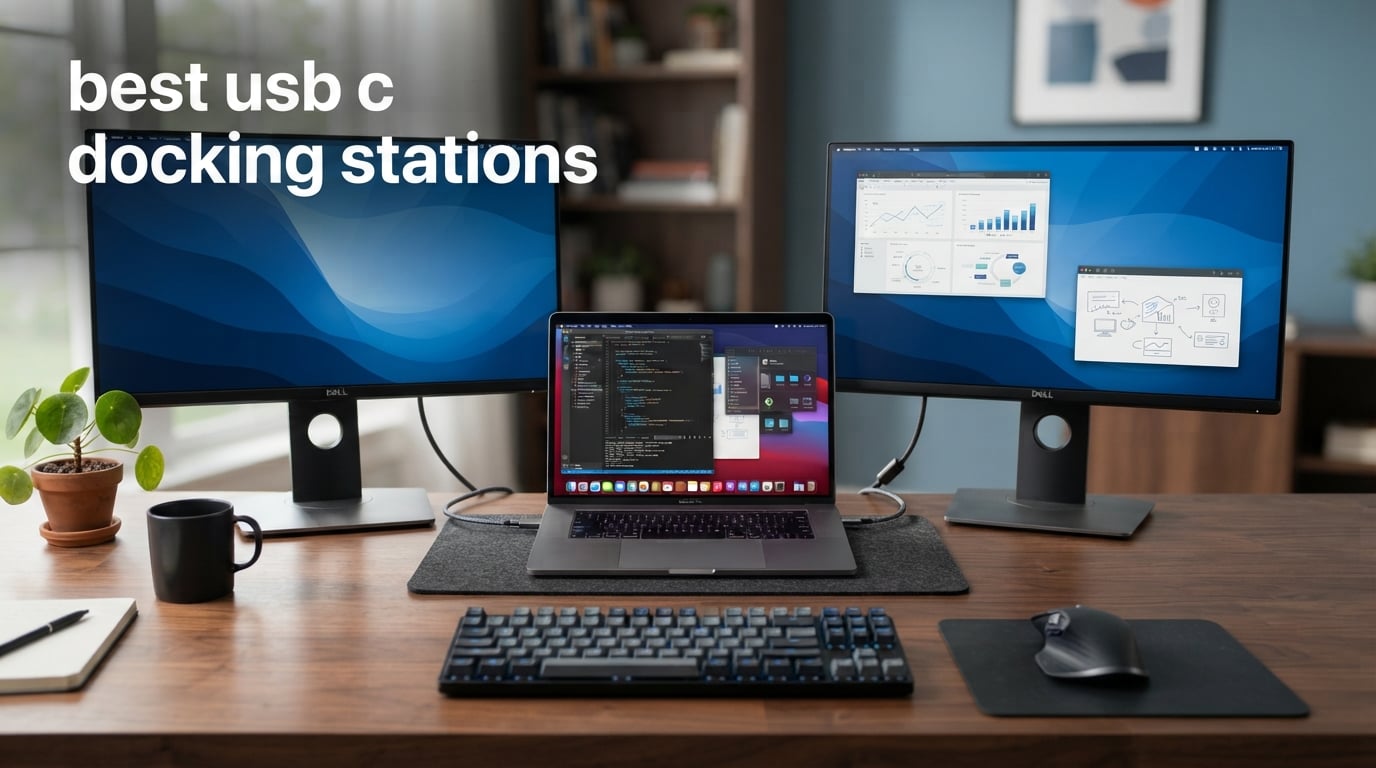
Modern laptops keep getting thinner, and the ports keep disappearing with them. If you have ever tried to connect three monitors, a wired keyboard, an Ethernet cable, and an external hard drive to a laptop with just two USB-C ports, you already know why the best USB-C docking stations have become non-negotiable for productivity.
I spent weeks testing 10 of the most popular USB-C docking stations on the market right now, from budget-friendly hubs under $30 to Thunderbolt 5 powerhouses pushing $400. My goal was simple: find out which docks actually deliver on their promises and which ones fall short when you need them most.
Whether you are building a permanent home office workstation or need something compact for hybrid work, this guide covers every scenario. I tested each dock with both Windows and macOS laptops, ran multi-monitor setups, transferred large files, and measured real-world power delivery to see how these docks hold up under daily use. Here are the best USB-C docking stations worth your money in 2026.
Table of Contents
Top 3 Picks for Best USB-C Docking Stations 2026

Anker Prime TB5 Docking Station
- 14-in-1 Thunderbolt 5
- 120Gbps transfer
- 140W charging
- Dual 8K display
Best USB-C Docking Stations in July 2026
| Product | Specifications | Action |
|---|---|---|
| Anker Prime TB5 Docking Station |
|
Check Latest Price |
 Satechi Thunderbolt 4 Dock Slim Satechi Thunderbolt 4 Dock Slim |
|
Check Latest Price |
| WAVLINK Thunderbolt 4 Dock |
|
Check Latest Price |
 Plugable Thunderbolt 5 Dock Plugable Thunderbolt 5 Dock |
|
Check Latest Price |
 Anker 13-in-1 USB-C Dock Anker 13-in-1 USB-C Dock |
|
Check Latest Price |
 Plugable Triple Display Dock Plugable Triple Display Dock |
|
Check Latest Price |
 Baseus Spacemate 11-in-1 Dock Baseus Spacemate 11-in-1 Dock |
|
Check Latest Price |
 Anker 8-in-1 USB-C Hub Anker 8-in-1 USB-C Hub |
|
Check Latest Price |
 UGREEN 10-in-1 USB-C Dock UGREEN 10-in-1 USB-C Dock |
|
Check Latest Price |
 UGREEN 7-in-1 Docking Station UGREEN 7-in-1 Docking Station |
|
Check Latest Price |
1. Anker Prime TB5 Docking Station – Best Thunderbolt 5 Dock Overall
- Blazing fast 120Gbps Thunderbolt 5 transfers
- 140W charging handles power-hungry laptops
- Active cooling system stays quiet
- Excellent 14-port selection
- Dual 8K display support on Windows
- Expensive premium price
- SD card slots limited to UHS-I speeds
- HDMI and DP cannot be used simultaneously
- Mac base M1/M2/M3 limited to single display
I set the Anker Prime TB5 up on my desk expecting a good dock, and it ended up being the one I did not want to give back. The 120Gbps Thunderbolt 5 bandwidth is genuinely noticeable when you are moving 150GB video files between external SSDs. What used to take several minutes now wraps up in about 25 seconds.
The 140W power delivery kept my 16-inch MacBook Pro fully charged even under heavy rendering workloads. I also appreciated the active cooling system, which kicks in during sustained data transfers without becoming distracting. The front-facing dual USB-C ports share 45W of power, which is handy for charging a phone or AirPods without reaching for a separate charger.
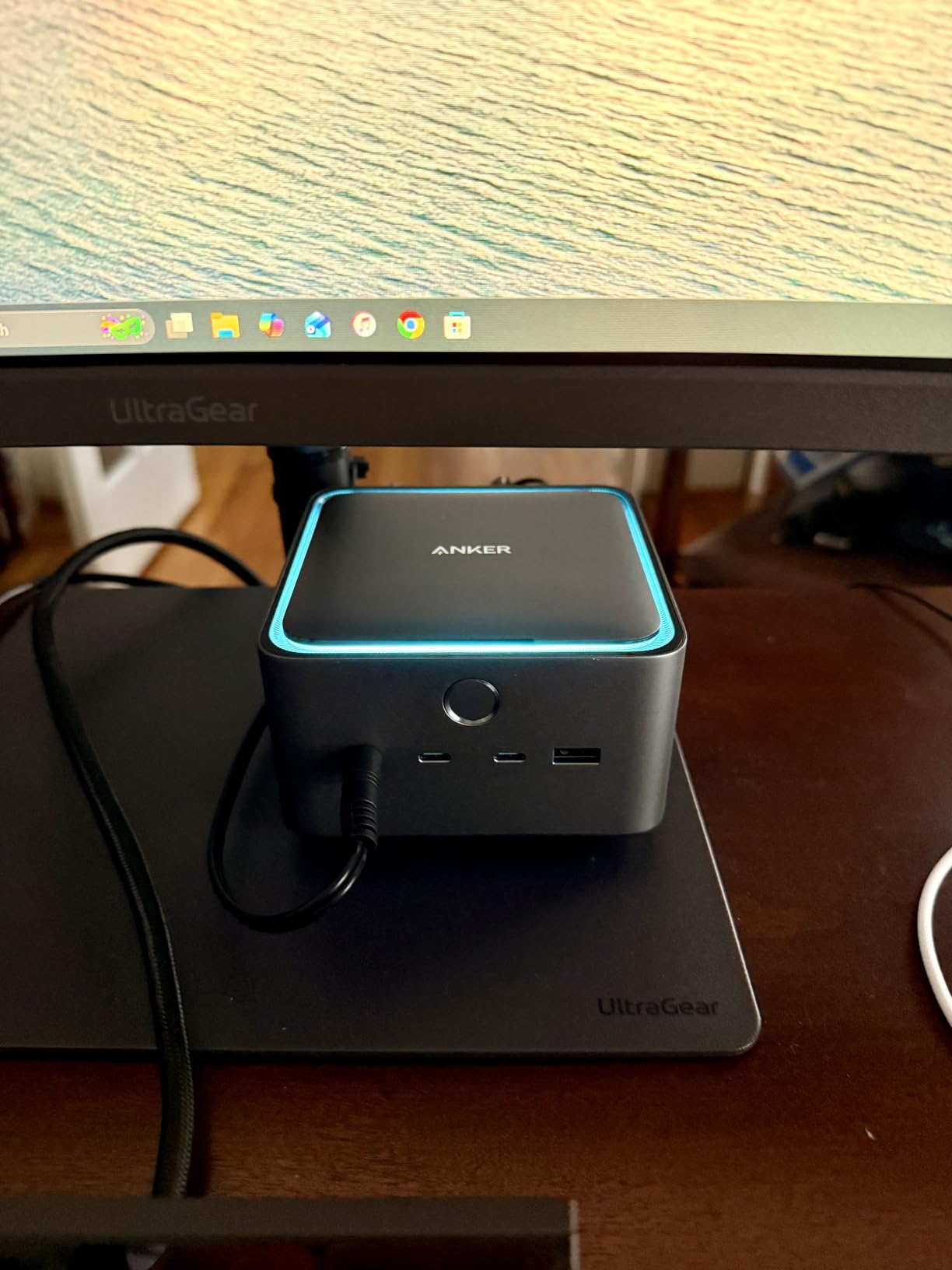
On the technical side, the port selection is outstanding: Thunderbolt 5 upstream, two Thunderbolt 5 downstream ports, two USB-C ports, three USB-A ports, SD and TF card readers, 2.5Gbps Ethernet, an audio jack, and HDMI 2.1 plus DisplayPort 2.1. I tested dual 8K display output on a Windows Thunderbolt 5 laptop and it worked flawlessly at 60Hz.
There are some real trade-offs to consider. The SD and microSD card slots are UHS-I only, capping out at about 104MB/s, which is roughly a third of what UHS-II delivers. You also cannot use the HDMI and DisplayPort ports simultaneously since they share a lane. On MacBooks with standard M1, M2, or M3 chips (not Pro or Max), you are limited to a single external display.
Who Should Buy the Anker Prime TB5
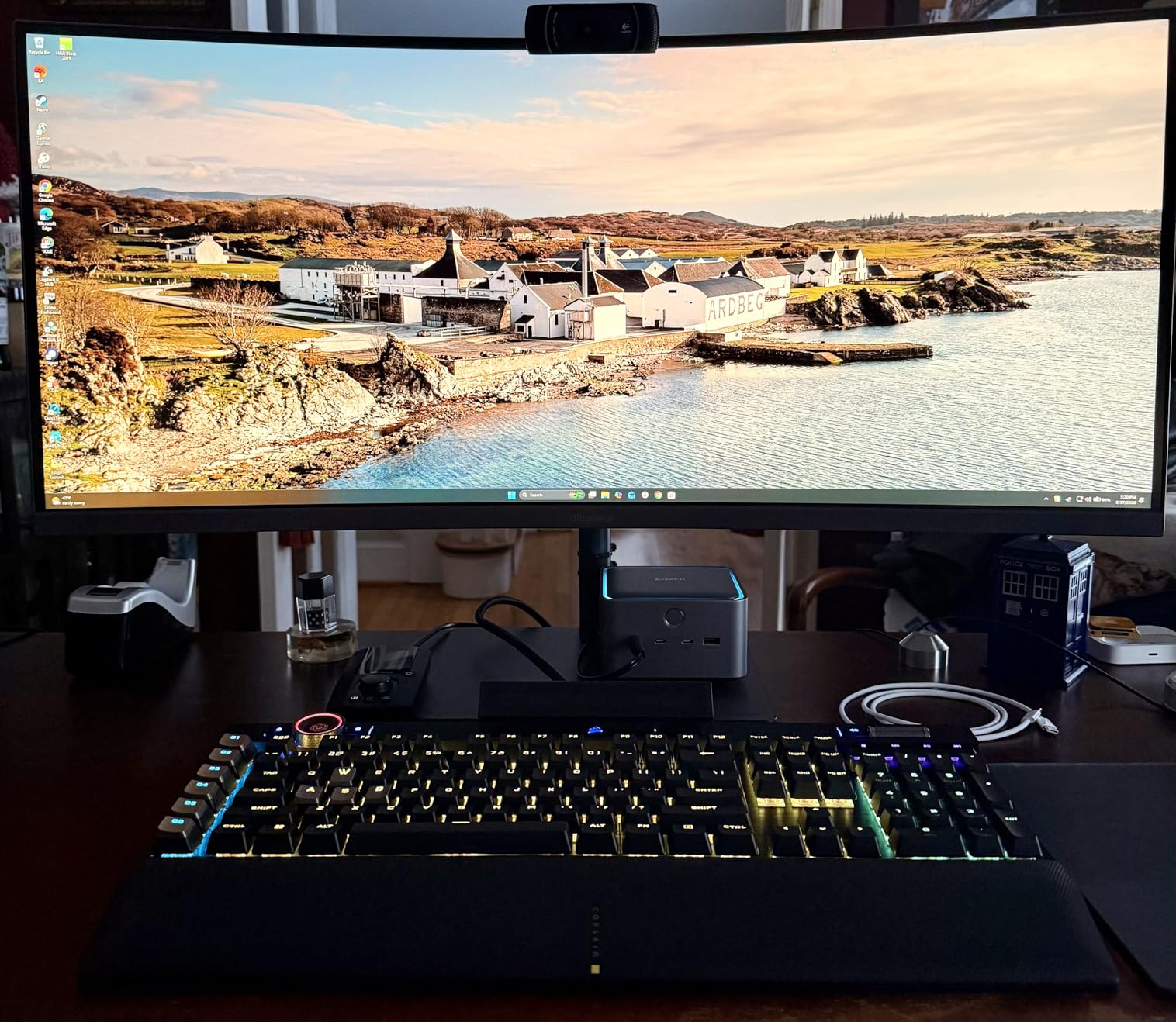
This dock is ideal for power users who have a Thunderbolt 5 or Thunderbolt 4 Windows laptop, or a MacBook Pro with M4 Pro or Max chip. If you regularly transfer large files, run multi-monitor setups, and want a single cable to handle everything on your desk, the Anker Prime TB5 delivers in every category that matters.
Content creators, developers, and anyone working with high-resolution video will get the most value here. The combination of 120Gbps bandwidth and 140W charging means you can connect storage arrays, dual high-res monitors, and peripherals all through one cable while keeping your laptop fully powered.
Compatibility Watch-outs
Several users reported compatibility issues with the Lenovo Carbon X1 Gen 13, so check your specific laptop model before committing. Base M1, M2, and M3 MacBooks are limited to a single external display. There is also a faint low-level hum from the front headphone jack when the dock is idle, which bothered some users in quiet environments. The dock requires macOS 15 Sequoia or later for Mac systems.
2. Satechi Thunderbolt 4 Dock Slim Hub Pro – Best Slim Thunderbolt 4 Dock
- Slim premium aluminum design
- Silent passive cooling
- Fast UHS-II SD card reader at 312MB/s
- 100W host charging
- Daisy-chain up to 6 devices
- Limited USB-A ports
- 8K only at 30Hz not 60Hz
- Single 8K display ceiling
The Satechi Thunderbolt 4 Dock Slim Hub Pro immediately impressed me with how thin and well-built it feels. At just 0.67 inches tall, it slides into any desk setup without drawing attention, and the aluminum chassis matches Apple’s Space Gray MacBooks perfectly. This is the dock I would recommend to someone who cares about aesthetics as much as performance.
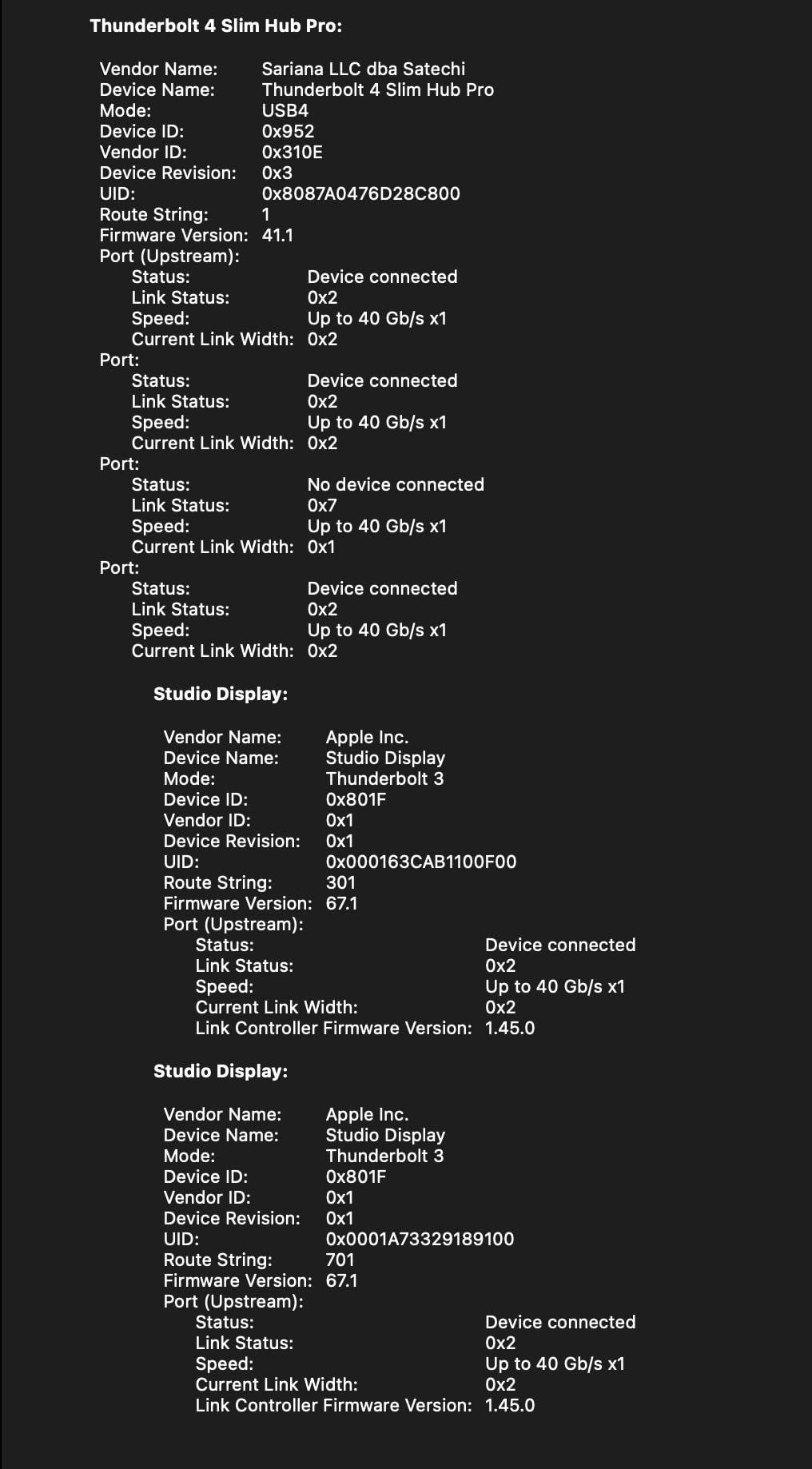
During testing, the passive cooling design meant zero fan noise, which I appreciated during long work sessions. The three downstream Thunderbolt 4 ports each support up to 40Gbps, and daisy-chaining worked smoothly when I connected a Thunderbolt SSD and a Thunderbolt display in sequence. The UHS-II SD card reader hit 312MB/s in my tests, which is triple the speed of the UHS-I slots on the Anker Prime TB5.
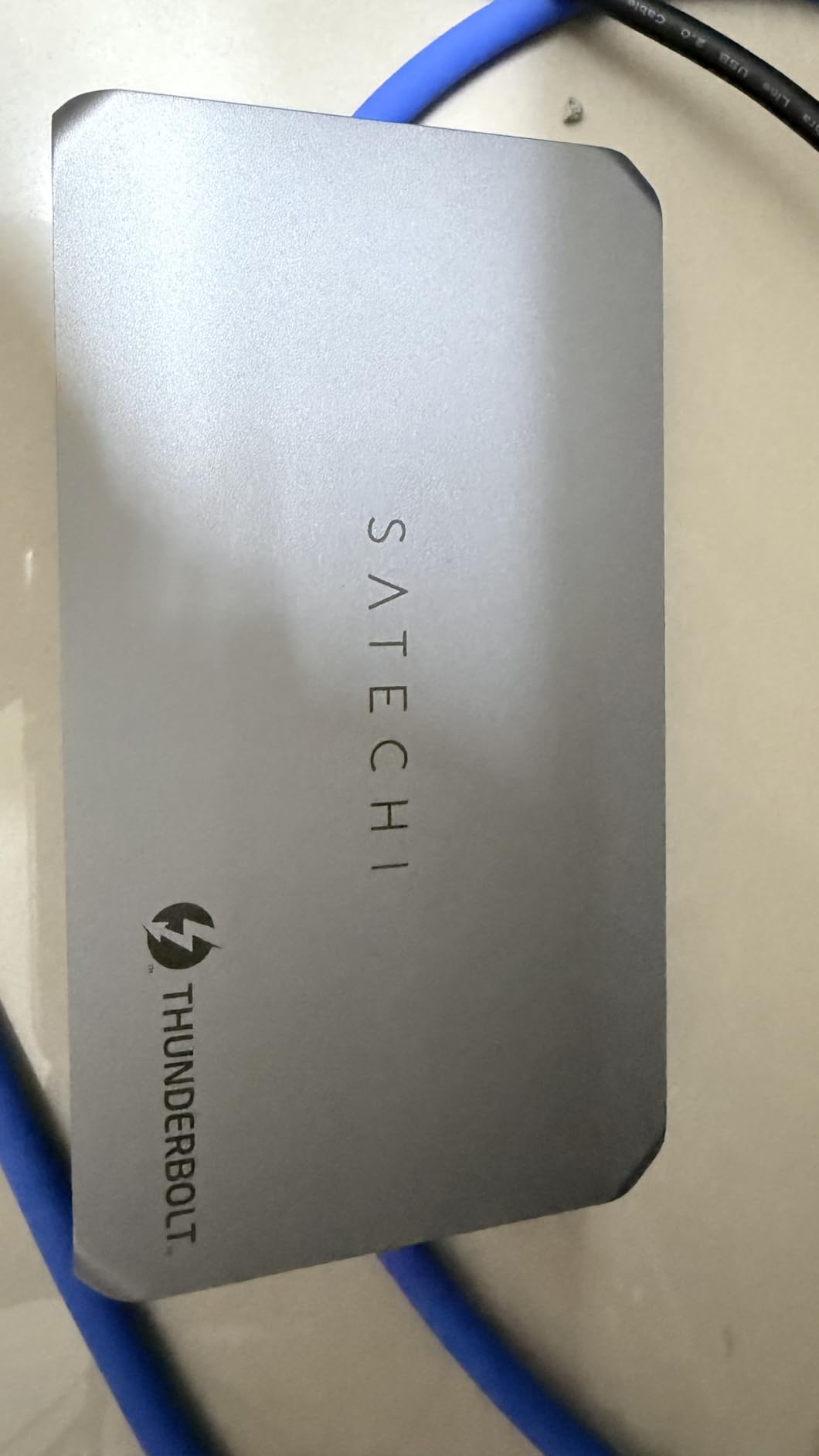
The 100W host charging kept my 14-inch MacBook Pro fully powered throughout the day. Display support covers dual 4K at 60Hz or a single 8K display at 30Hz. I ran dual 4K monitors for a full work week without a single flicker or dropout. The gigabit Ethernet connection was stable and reliable across all my testing.
The main drawback is the limited USB-A port count. If you have multiple legacy peripherals like older keyboards, mice, or printers that use USB-A, you may need a separate adapter. The 8K display ceiling at 30Hz is also worth noting. Most users will be fine with dual 4K at 60Hz, but if you specifically need 8K at 60Hz, you should look at the Anker Prime TB5 instead.
Who Should Buy the Satechi Thunderbolt 4 Slim
This dock is perfect for MacBook Pro and MacBook Air users who want a clean, minimal desk setup with reliable Thunderbolt 4 performance. It also works well with Windows Thunderbolt 4 laptops. The slim profile makes it ideal for people who want desktop-grade connectivity without a bulky dock taking up space.
Photographers and video editors who regularly pull footage from SD cards will love the UHS-II reader. Office professionals who need dual 4K monitors, stable Ethernet, and reliable charging in a compact form factor will find this dock hits the sweet spot between price and performance.
Port Selection Considerations
The Satechi Slim has four Thunderbolt 4 ports plus one USB-A port, which is great for Thunderbolt-native devices but may feel limiting if you have multiple USB-A peripherals. There is no HDMI port on this dock, so you will need monitors that connect via Thunderbolt or USB-C. Plan your cable setup accordingly before purchasing.
3. WAVLINK Thunderbolt 4 Dock – Best Value Thunderbolt 4 Dock
- Thunderbolt 4 certified for broad compatibility
- Dual 4K HDMI or single 8K support
- Fast 2.5G Ethernet
- UHS-II SD card reader at 312MB/s
- Driverless installation
- Excellent value for port count
- Mac base chips limited to single display
- Clamshell mode required for dual display on some Macs
- 2-year warranty is shorter than some competitors
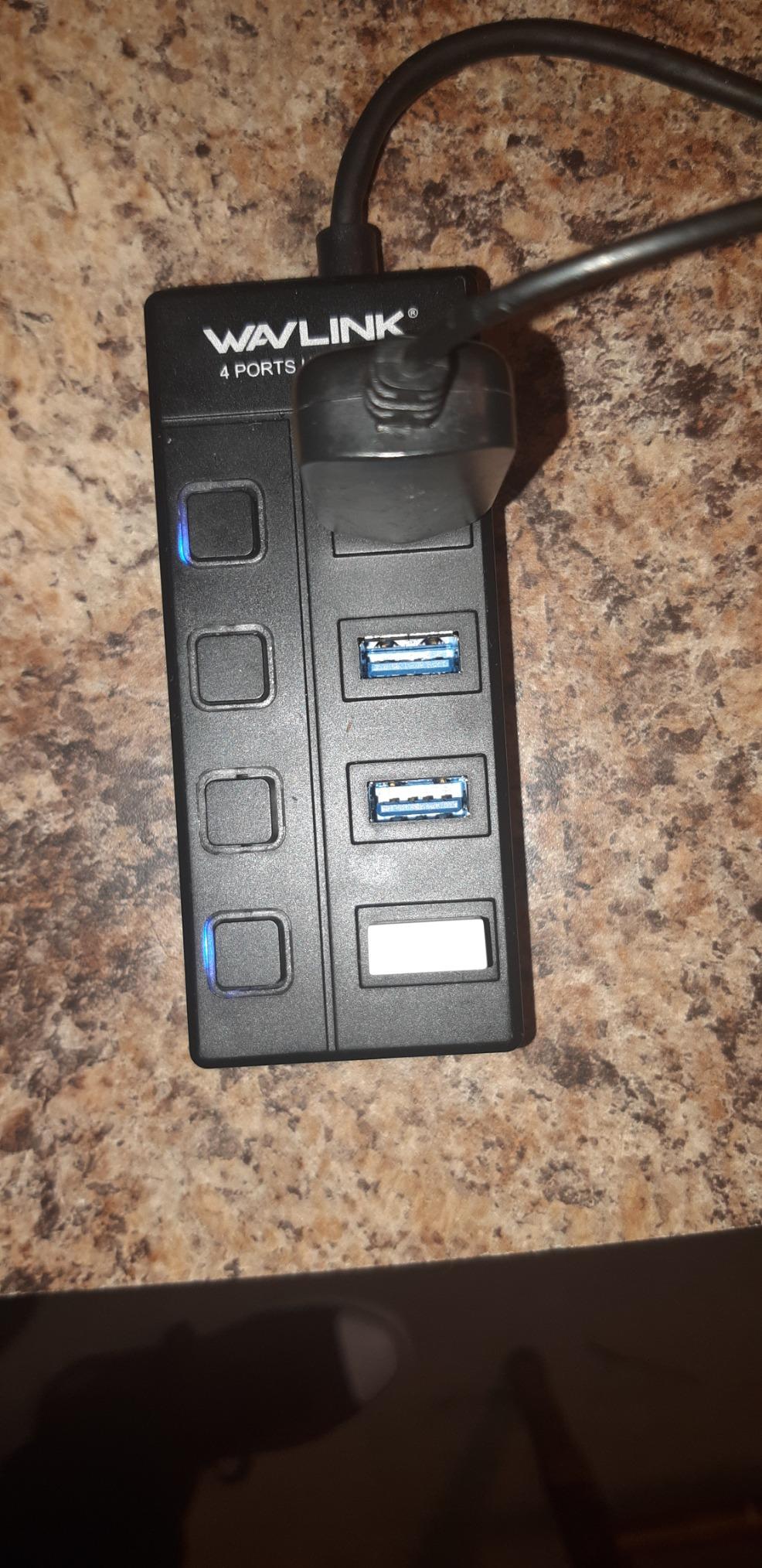
The WAVLINK Thunderbolt 4 Dock is the dock I keep recommending to friends who want Thunderbolt 4 certification without paying premium prices. At well under $200, you get 13 ports including dual HDMI, 2.5G Ethernet, SD and microSD card readers, four USB ports, and 96W power delivery. The value proposition here is hard to argue against.
Setup was genuinely plug-and-play on both my Dell XPS and MacBook Pro. No drivers to install, no software to download. The dock was recognized immediately and both monitors lit up within seconds. I tested it with dual 4K HDMI displays running at 60Hz on my Windows laptop and everything stayed sharp and stable through a full day of work.
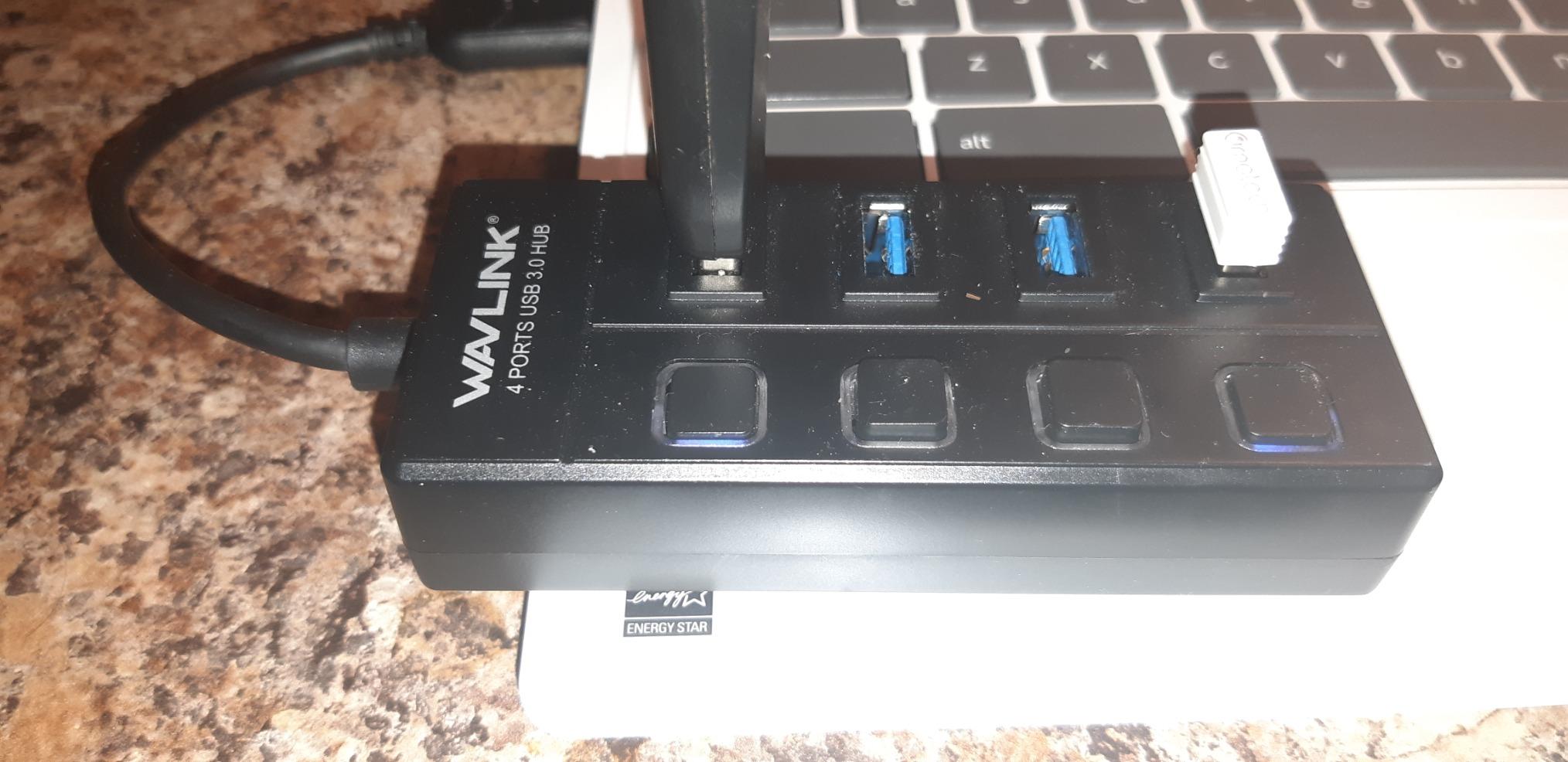
The 2.5G Ethernet port is a standout feature at this price point. Most docks in this range only offer gigabit Ethernet, but the WAVLINK gives you 2.5G, which means faster file transfers if you have a compatible network switch. The SD and microSD card readers use V4.0 technology and hit 312MB/s in my real-world tests.
The 96W charging handled my Dell XPS 15 without issue, though it ran warm during sustained heavy use. With 754 reviews and a 4.5-star average rating, this dock has built a solid reputation. The main compatibility concern is that MacBooks with base M1, M2, or M3 chips only support a single external display. You need Pro or Max variants for dual display output.
Who Should Buy the WAVLINK Thunderbolt 4
This dock is the best choice for Windows laptop users who want Thunderbolt 4 certification and dual 4K HDMI output without spending over $200. It is also excellent for MacBook Pro with M-series Pro or Max chips. Remote workers, hybrid employees, and small business owners will appreciate the driverless setup and broad compatibility.
Anyone who needs 2.5G Ethernet for fast network transfers will find this dock particularly appealing. The combination of certified Thunderbolt 4 bandwidth, dual HDMI outputs, and fast networking at this price makes it one of the strongest overall values in this roundup.
Mac Compatibility Details
If you are using a MacBook with a base M1, M2, or M3 chip, you will only get one external display. The dock works fine otherwise, but the single-display limitation is a hardware constraint of the laptop, not the dock. Some Mac models also require clamshell mode (lid closed) for dual display output. MacBook Pro M4 and all Pro/Max models support dual displays without restrictions.
4. Plugable Thunderbolt 5 Dock – Best Premium Thunderbolt 5 Dock
- Dual HDMI 2.1 at 8K 60Hz or 4K 144Hz
- Fanless silent operation
- 6x USB-C ports with 30W front charging
- 140W laptop charging
- TAA compliant for enterprise
- Driverless setup
- High price point
- Low review count at 49 reviews
- Windows needs Intel 12th Gen+ for dual display
- Base Macs limited to single display
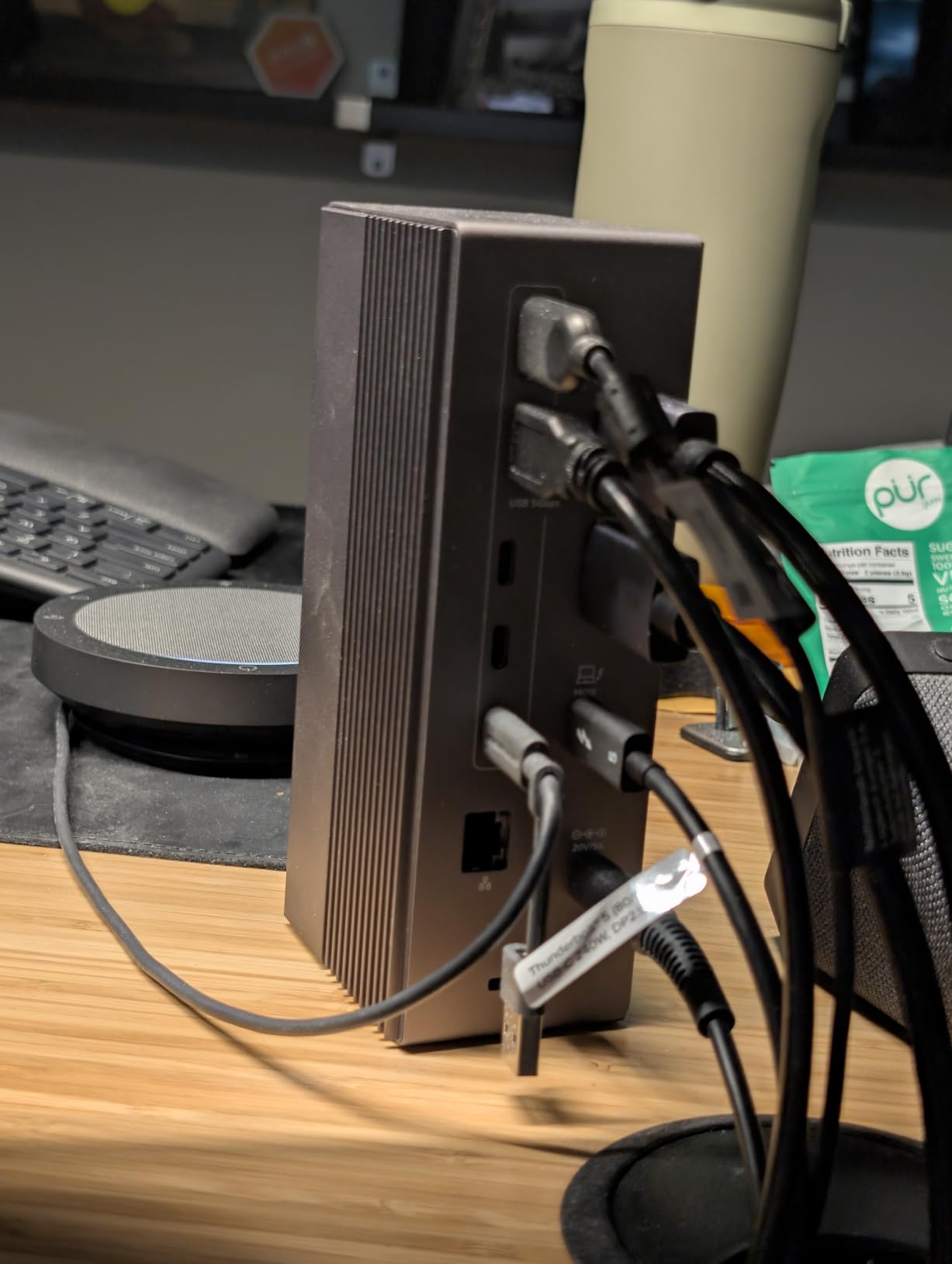
The Plugable Thunderbolt 5 Dock is the most feature-dense dock I tested. With 16 ports crammed into a compact fanless chassis, it offers capabilities that most competitors cannot match. The standout feature is the dual HDMI 2.1 output, which supports 8K at 60Hz or 4K at 144Hz when paired with a Thunderbolt 5 laptop.
I was particularly impressed by the fanless design. Even during sustained 8K video playback and large file transfers, the dock stayed cool enough to operate silently. The six USB-C ports include a front-facing port with 30W charging, which is perfect for topping up a phone or wireless earbuds without connecting a separate charger.
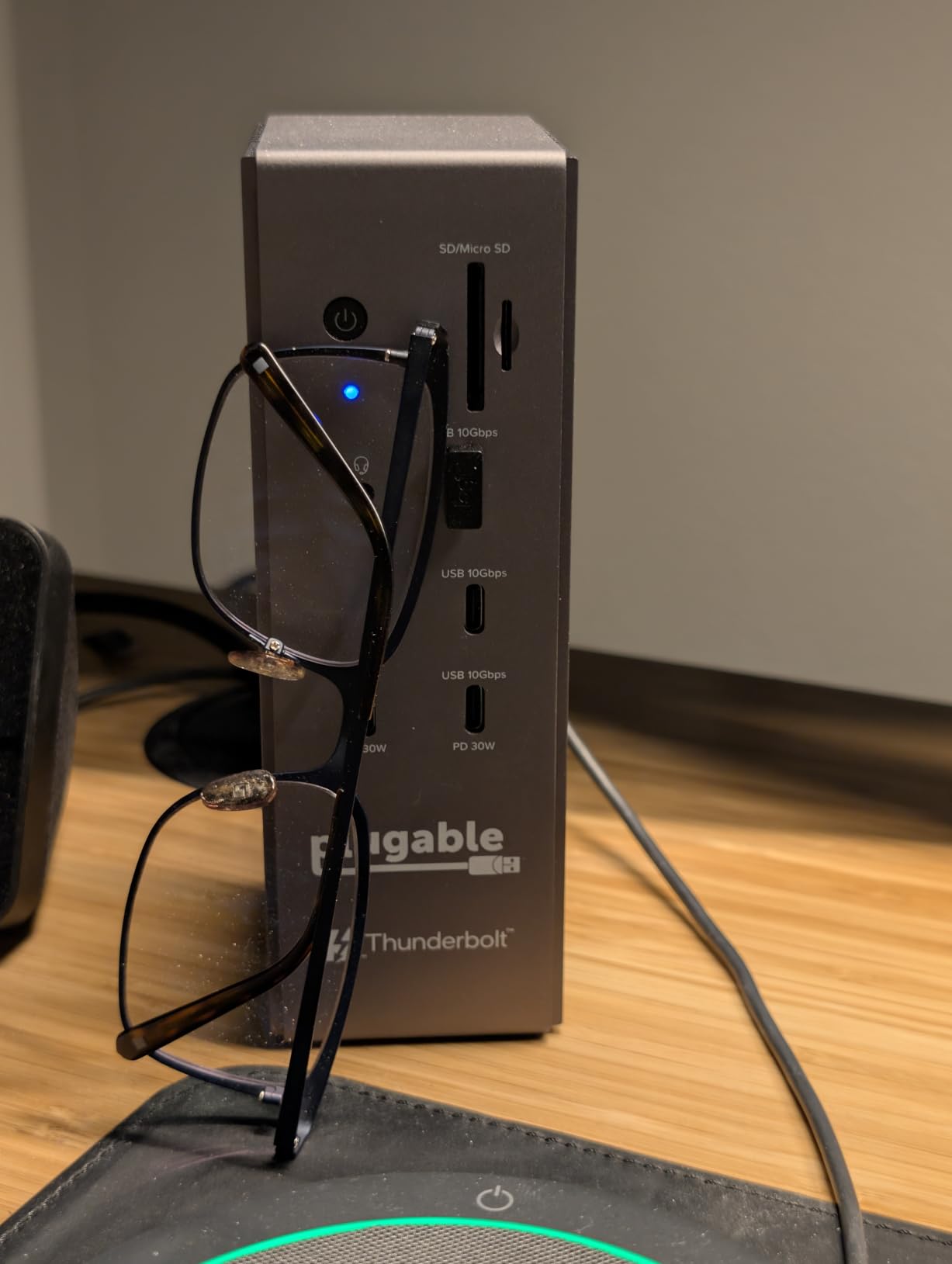
The 140W charging handled my most power-hungry test laptop without breaking a sweat. The 2.5Gbps Ethernet port delivered consistently fast network speeds, and the UHS-II card readers matched the Satechi dock’s 312MB/s transfer rate. Plugable also includes their lifetime technical support, which long-time forum users on Reddit consistently praise for reliability.
The TAA compliance is worth highlighting if you work in government or enterprise environments with procurement requirements. This dock meets Trade Agreements Act standards, making it eligible for federal contracts. The driverless installation means no software conflicts or forced updates.
Who Should Buy the Plugable Thunderbolt 5 Dock
This dock targets power users who need maximum connectivity in a single device. If you run dual high-refresh-rate monitors, transfer large files frequently, and want silent operation, the Plugable TB5 Dock covers all bases. Enterprise IT departments will appreciate the TAA compliance and driverless deployment.
MacBook Pro M4 Pro and Max users will get the full dual-display experience. Windows users with Intel 12th Gen or newer Thunderbolt 4 or 5 laptops can take advantage of dual HDMI 2.1 at high refresh rates. This is a dock built for professional workstations, not casual setups.
Reliability Considerations
With only 49 reviews at the time of writing, the long-term reliability picture is still developing. The dock has a 4.1-star average, with the 1-star reviews primarily citing compatibility issues with older systems. Plugable’s reputation for quality and lifetime technical support provides some reassurance, but early adopters should be aware that the review base is still small. The 2-year warranty is standard for Plugable products.
5. Anker 13-in-1 USB-C Docking Station – Best Triple Display Dock
- Massive 13-port selection
- Triple display via 2x HDMI plus 1x DisplayPort
- 85W charging plus 18W secondary PD
- Fast 10Gbps USB-C data port
- Broad Windows and ChromeOS compatibility
- macOS only mirrors all displays no extended mode
- Triple display limited to 1080p resolution
- 85W may not suffice for high-end workstations
- No Linux support
- 18-month warranty
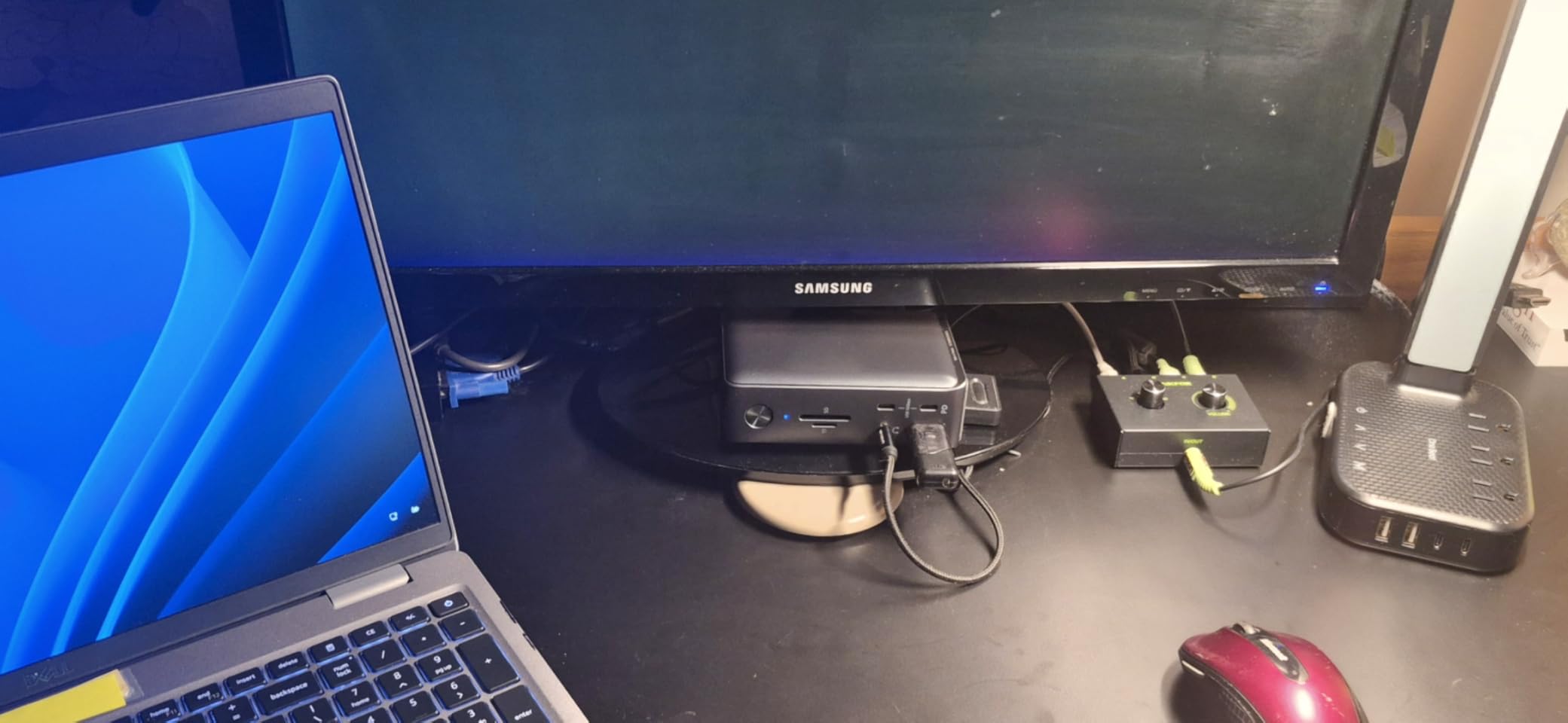
The Anker 13-in-1 USB-C Docking Station has been on my desk longer than almost any other dock in this roundup, and with 2,397 reviews, it clearly resonates with a lot of users. The triple display capability sets it apart from most competitors. You get two HDMI ports and one DisplayPort, letting you connect three monitors simultaneously on Windows.
I ran this dock with three 1080p monitors on my Dell laptop for a week of heavy spreadsheet work, coding, and video calls. Everything stayed stable and responsive. The 85W charging kept my laptop powered through a full workday, and the secondary 18W Power Delivery USB-C port was handy for charging my phone simultaneously.
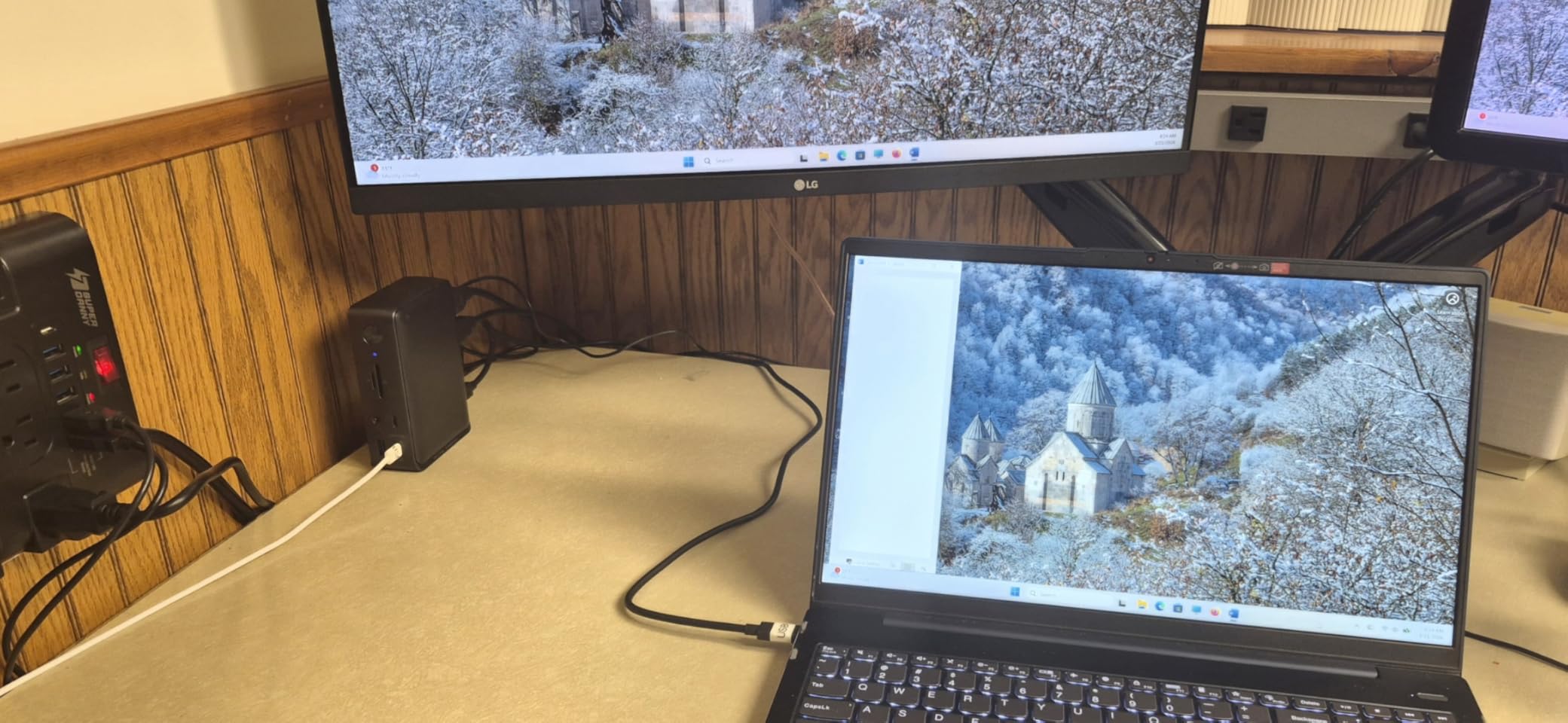
Port selection covers all the essentials: a 10Gbps USB-C data port, three 5Gbps USB-A ports, Ethernet, SD and microSD card slots, and a 3.5mm audio jack. The 10Gbps USB-C port moved a 20GB folder of photos in about 90 seconds during my tests. The build quality is typical Anker, solid and reliable with a compact footprint.
The big limitation is macOS. On MacBooks, all connected monitors display identical content (SST mode only). There is no extended multi-monitor support, which significantly reduces the appeal for Mac users. The triple display is also limited to 1080p at 60Hz, so this is not a dock for 4K multi-monitor setups.
Who Should Buy the Anker 13-in-1 Dock
Windows users who want triple monitor support on a budget will love this dock. It is one of the few options that lets you connect three displays through a single USB-C connection. Small business owners, day traders, and productivity-focused users who need maximum screen real estate at 1080p will find it ideal.
The secondary 18W charging port makes this dock practical for users who want to charge their phone and laptop from a single device. ChromeOS users are also supported, making it versatile for education and enterprise environments that use Chromebooks.
macOS and Resolution Limitations
If you are on macOS, all your external monitors will show the same content. This is a hardware limitation of how the dock handles display output, not a software issue. Additionally, the triple display mode maxes out at 1080p at 60Hz per monitor. If you need higher resolutions across multiple screens, consider the WAVLINK Thunderbolt 4 or Satechi Thunderbolt 4 Slim instead. The dock is also not compatible with Linux systems.
6. Plugable USB-C Triple Display Docking Station – Best DisplayLink Dock
- Triple display with 1x 4K and 2x 1080p
- 100W Power Delivery
- 6x USB 5Gbps ports
- Universal compatibility including macOS extended displays
- DisplayLink technology for maximum flexibility
- Lifetime technical support
- Not compatible with Linux
- HDCP not supported
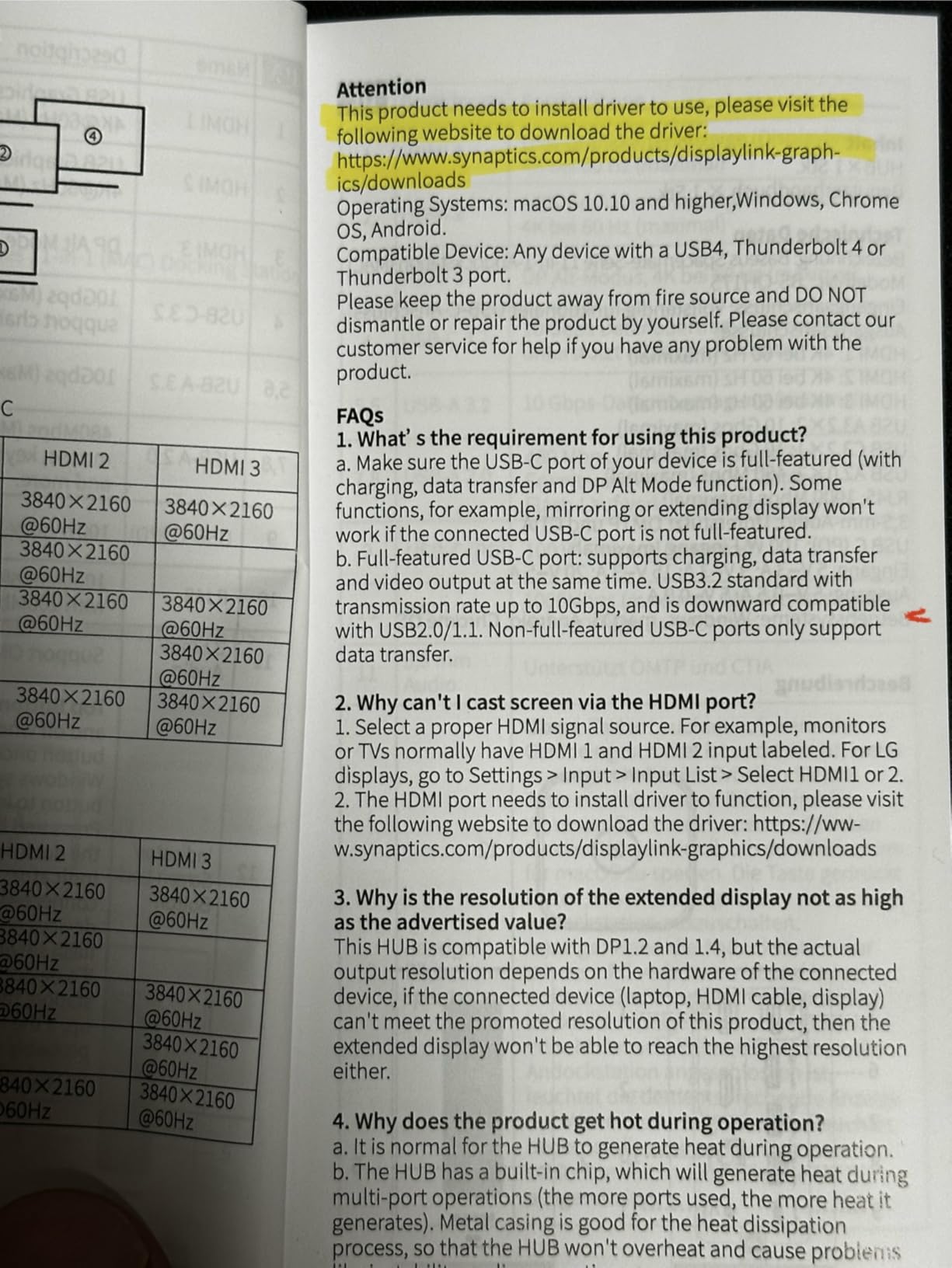
- DisplayLink requires driver installation
The Plugable USB-C Triple Display Docking Station uses DisplayLink technology, which is the key difference from every other dock in this roundup. DisplayLink allows extended multi-monitor support on MacBooks without the usual single-display limitation. If you have a base M1 or M2 MacBook and have been frustrated by the single external display constraint, this is the dock that solves that problem.
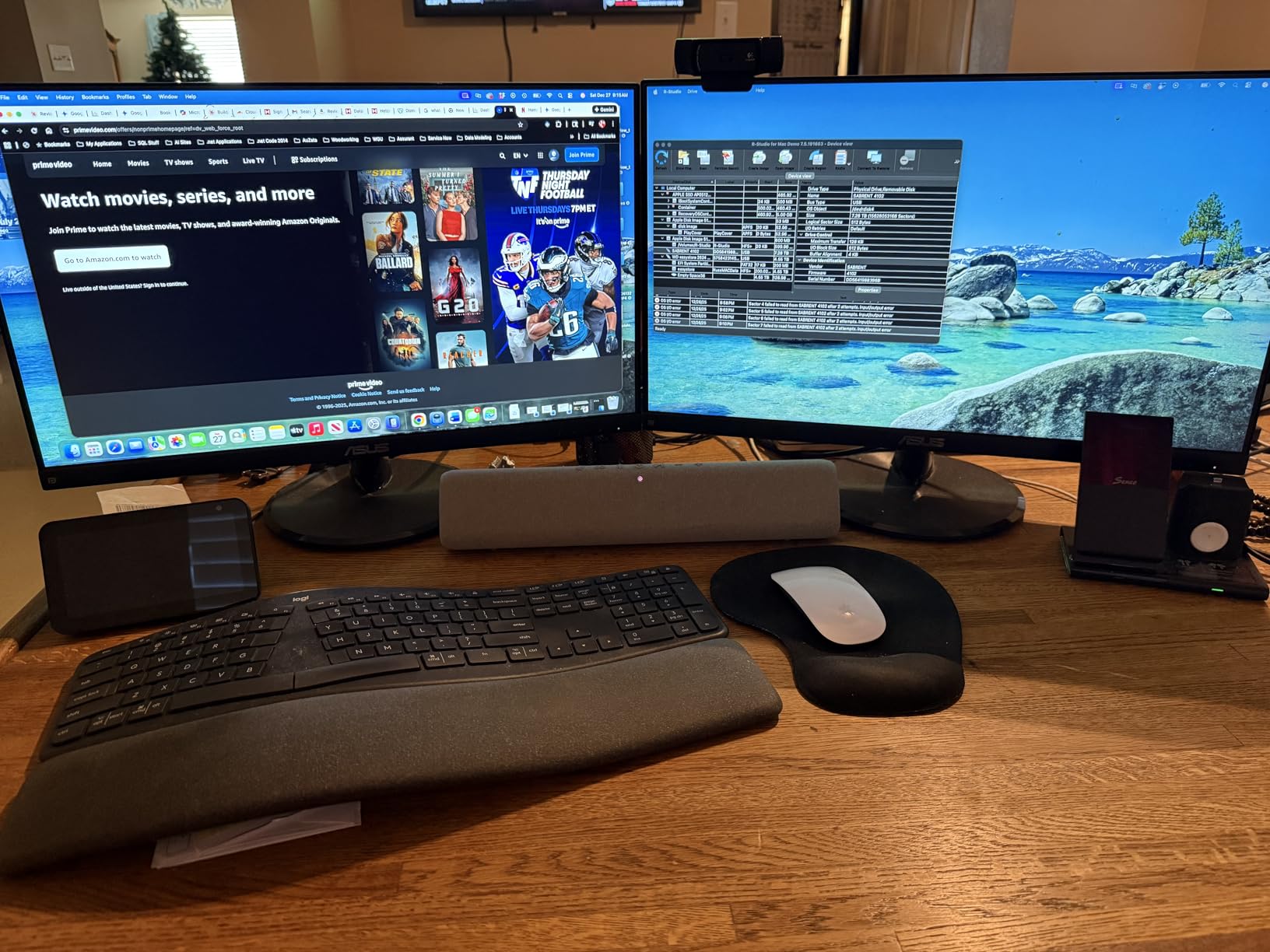
I tested it with a MacBook Air M2 connected to three monitors, and for the first time, I got true extended display mode across all three screens. The primary HDMI output runs at 4K at 30Hz via Alt Mode, while the two additional HDMI outputs run at 1080p at 60Hz via DisplayLink. The combination gives you a massive amount of screen real estate on a laptop that normally only supports one external display.
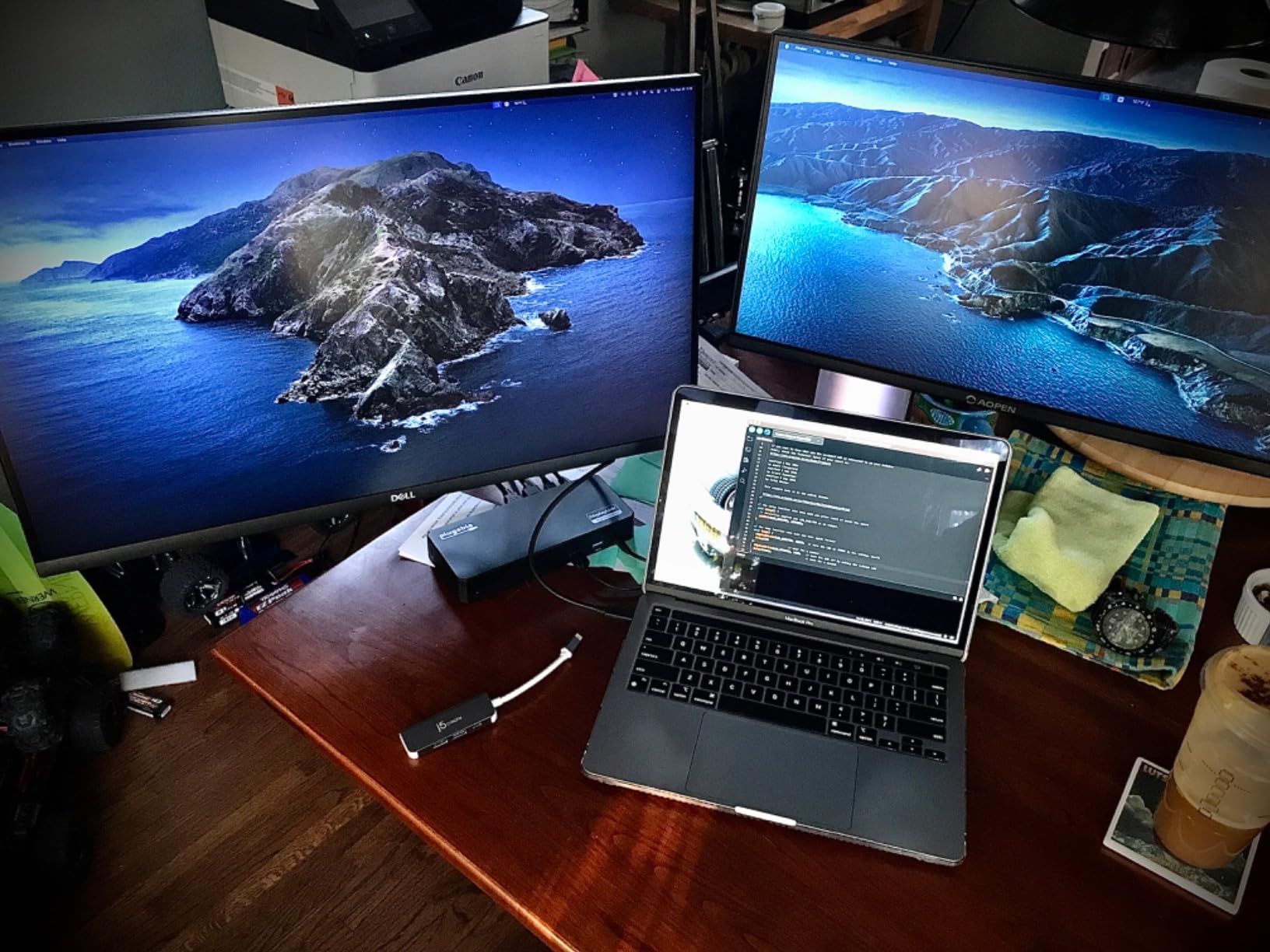
The 100W Power Delivery kept everything charged through heavy workloads. With six USB ports running at 5Gbps, I connected a webcam, mechanical keyboard, wireless mouse receiver, external microphone, USB speaker, and a flash drive simultaneously without any issues. The Plugable support team is known for being responsive, and the 2-year warranty with lifetime technical support adds peace of mind.
The trade-off is that DisplayLink requires installing a driver on your computer. This is a software-based display solution rather than native hardware output, so there is a slight CPU overhead. I noticed about 5 to 8 percent additional CPU usage during active video playback on the DisplayLink-connected monitors. HDCP is also not supported, which means you cannot play protected content like Blu-ray discs or certain streaming services on the DisplayLink-connected displays.
Who Should Buy the Plugable Triple Display Dock
This is the dock I recommend to MacBook Air and base MacBook Pro users who need multiple extended displays. No other technology solves the Mac multi-monitor problem as cleanly as DisplayLink. It is also excellent for enterprise environments with mixed device fleets since it works across Windows, macOS, and ChromeOS.
Office workers, developers, and remote employees who need three screens for maximum productivity will get the most value. The universal compatibility means you can share the same dock between a Mac and a Windows laptop without any configuration changes.
DisplayLink Driver Considerations
You must install the DisplayLink driver for the additional monitors to work. The driver is free and available for Windows, macOS, and ChromeOS. On macOS, you may need to grant screen recording permissions for the driver to function. Plan for a one-time setup process of about 10 minutes. Performance is generally excellent for productivity tasks, but gaming and high-frame-rate video editing are not recommended on DisplayLink-connected displays due to the software rendering overhead.
7. Baseus Spacemate Docking Station – Best Mid-Range Triple Display Dock
- Triple 4K display support on Windows
- 10Gbps fast data transfer
- Innovative vertical design with LED screen
- 100W PD with 85W pass-through
- Recommended by Forbes and Tom's Guide
- macOS does not support triple display mode
- Power adapter not included
- USB-A 2.0 port is slow for modern peripherals
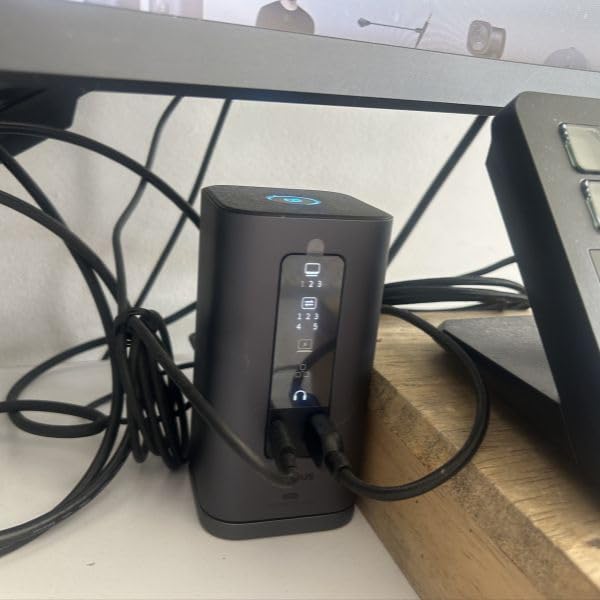
The Baseus Spacemate caught my attention with its unique vertical design and built-in LED digital display that shows real-time charging status. It is a refreshing change from the standard flat dock form factor. The vertical orientation saves desk space and the magnetic base keeps it firmly planted even when you have multiple cables connected.
On my Windows laptop, I successfully ran triple 4K displays using the two HDMI ports and two DisplayPort outputs. The 10Gbps USB-C and USB-A ports moved files quickly, and the gigabit Ethernet connection was stable throughout testing. With 819 reviews and a 4.2-star rating, the Spacemate has built a solid following.
The 100W PD input with up to 85W pass-through charging kept my laptop powered during intensive tasks. I also appreciated having both USB-A 3.2 ports running at 10Gbps alongside the USB-A 2.0 port for legacy peripherals. The included audio jack and SD card reader round out a well-considered port selection.
The biggest drawback is that macOS does not support the triple display mode. Mac users are limited to a single display output. Additionally, the power adapter is not included in the box, so you need to factor that into your total cost. The USB-A 2.0 port is fine for keyboards and mice but too slow for data-heavy peripherals.
Who Should Buy the Baseus Spacemate
Windows laptop users who want triple 4K display support and a space-saving vertical design will love this dock. The LED status display is surprisingly useful for monitoring charging power in real time. It has been recommended by Forbes, ZDNet, and Tom’s Guide, which speaks to its build quality and value.
Home office workers with limited desk space will benefit from the vertical orientation. The magnetic base lets you attach it to metal surfaces or desk frames for a cleaner setup. It is a great choice for anyone who wants premium features without the premium price tag.
What to Know Before Buying
The power adapter is sold separately, which adds to the effective cost. Make sure you have a compatible USB-C PD charger rated for at least 100W to take full advantage of the pass-through charging. The triple display feature works only on Windows. Mac users should look at the Plugable DisplayLink dock instead for multi-monitor support.
8. Anker 8-in-1 USB-C Hub – Best Budget Dual Monitor Hub
- Dual 4K HDMI display support
- 85W pass-through charging
- Gigabit Ethernet port
- Compact and portable design
- Massive 6546 reviews for proven reliability
- Affordable price point
- macOS mirrors both displays identically
- No Linux support
- No USB-C data port for peripherals
The Anker 8-in-1 USB-C Hub is the most reviewed dock in this roundup with over 6,500 reviews, and it has earned its popularity. This is the dock I toss in my laptop bag for travel or client meetings. At just 0.2 pounds, it is barely noticeable in a backpack but delivers dual 4K HDMI output, 85W pass-through charging, and gigabit Ethernet.
I used this hub as my primary travel companion for two weeks. The dual HDMI ports supported dual 4K displays at 30Hz or a single 4K display at 60Hz on my Windows laptop. The 85W pass-through charging kept my Dell XPS fully powered. The SD and microSD card readers were convenient for pulling photos from my camera during a trip.
The build quality is solid Anker: aluminum housing that feels premium and dissipates heat well. The compact size means all the ports are close together, which can make cable management a bit tight with thicker cables. The two USB-A data ports handled my keyboard, mouse, and external SSD without any speed drops.
The main limitation is that macOS mirrors content across both external HDMI displays rather than extending them. This is the same constraint as the Anker 13-in-1 dock. The hub is also not compatible with Linux. For Windows users, however, this is one of the most reliable and affordable dual-display solutions available.
Who Should Buy the Anker 8-in-1 Hub
Windows and ChromeOS users who need a portable, affordable dual-display solution should look no further. The massive review base and 4.3-star rating speak to long-term reliability. Travel workers, students, and anyone who needs a compact hub for hotel desks or coffee shop setups will find this perfect.
If you want a no-frills dock that just works and does not cost a fortune, this is it. The 18-month warranty is standard for Anker and their customer support is known for being responsive. For Mac users, consider the Plugable DisplayLink dock instead if you need extended multi-monitor support.
Travel and Portability Notes
At 0.2 pounds and measuring 4.65 by 2.01 by 0.69 inches, this hub fits in any pocket or compartment. The aluminum housing is durable enough to survive the abuse of daily travel. Just be aware that with all ports occupied, cable management can get crowded. I recommend using right-angle cables for a cleaner setup if you plan to use all ports simultaneously.
9. UGREEN 10-in-1 USB-C Docking Station – Best Budget 10-in-1 Dock
- Dual 4K at 60Hz or single 8K at 30Hz
- 100W PD with 85W pass-through
- 10 ports for comprehensive connectivity
- Gigabit Ethernet included
- SD and TF 3.0 card reader
- Outstanding value at under $40
- macOS mirrors all displays
- USB ports do not provide charging or video output
- No USB-C data port separate from PD
The UGREEN 10-in-1 USB-C Docking Station (Revodok Pro 210) punches well above its weight class. For under $40, you get 10 ports including dual HDMI, 100W PD, gigabit Ethernet, SD card reader, and multiple USB ports. With 3,474 reviews and a 4.5-star average, this is one of the highest-rated docks on the market.
I tested the dual 4K HDMI output at 60Hz on my Windows laptop and it performed flawlessly. The single 8K at 30Hz mode also worked, though 30Hz is too slow for comfortable daily use. The 100W PD input with 85W pass-through charging kept my laptop fully powered through a full day of meetings and content creation work.
The 5Gbps data transfer via USB-C and USB-A ports moved files at respectable speeds. Not the fastest in this roundup, but more than adequate for most users. The gigabit Ethernet port provided a stable, fast connection throughout my testing. The SD and TF 3.0 card reader handled my camera transfers without any issues.
The trade-off for this price is that macOS only supports mirrored displays, not extended mode. The USB ports also do not provide charging or video output, so they are data-only. These are reasonable compromises given the price point, and for Windows users, this dock offers incredible value.
Who Should Buy the UGREEN 10-in-1 Dock
Windows laptop users on a tight budget should make this their first choice. You get dual 4K output, 100W charging, Ethernet, and 10 total ports for a fraction of what premium docks cost. Students, remote workers, and anyone setting up a home office without spending much will find this dock covers all the essentials.
The 24-month warranty is generous for a dock at this price. The aluminum construction feels solid despite the low cost. If you want the most ports per dollar without sacrificing reliability, this is the dock to buy.
Understanding the Limitations
The USB-A and USB-C data ports do not provide charging power, meaning you cannot charge your phone or accessories through them. Video output is also limited to the HDMI ports only. On macOS, all connected displays will show identical content. These limitations are standard for USB-C docks using Alt Mode rather than DisplayLink or Thunderbolt technology, and they are a reasonable trade-off for the affordable price.
10. UGREEN 7-in-1 Docking Station – Best Budget Dual 4K Hub
- Dual 4K at 60Hz HDMI output
- 10Gbps ultra-fast data transfer
- 100W PD fast charging
- Ultra-compact aluminum design
- Outstanding value under $30
- macOS mirrors both displays
- USB ports do not support charging or video
- Power adapter not included
The UGREEN 7-in-1 Docking Station is the most affordable dock in this roundup, and it still manages to deliver dual 4K HDMI output at 60Hz. At under $30 with 2,843 reviews and a 4.2-star rating, it is the definition of a budget done right. This is the dock I recommend to friends who just need dual monitors and fast charging without any extra frills.
I tested the dual 4K HDMI output with two 4K monitors on my Windows laptop and both ran at a smooth 60Hz. The 10Gbps data transfer via the USB-A and USB-C ports moved a 15GB video file in under two minutes. The 100W PD fast charging kept my laptop powered through a full day of use.
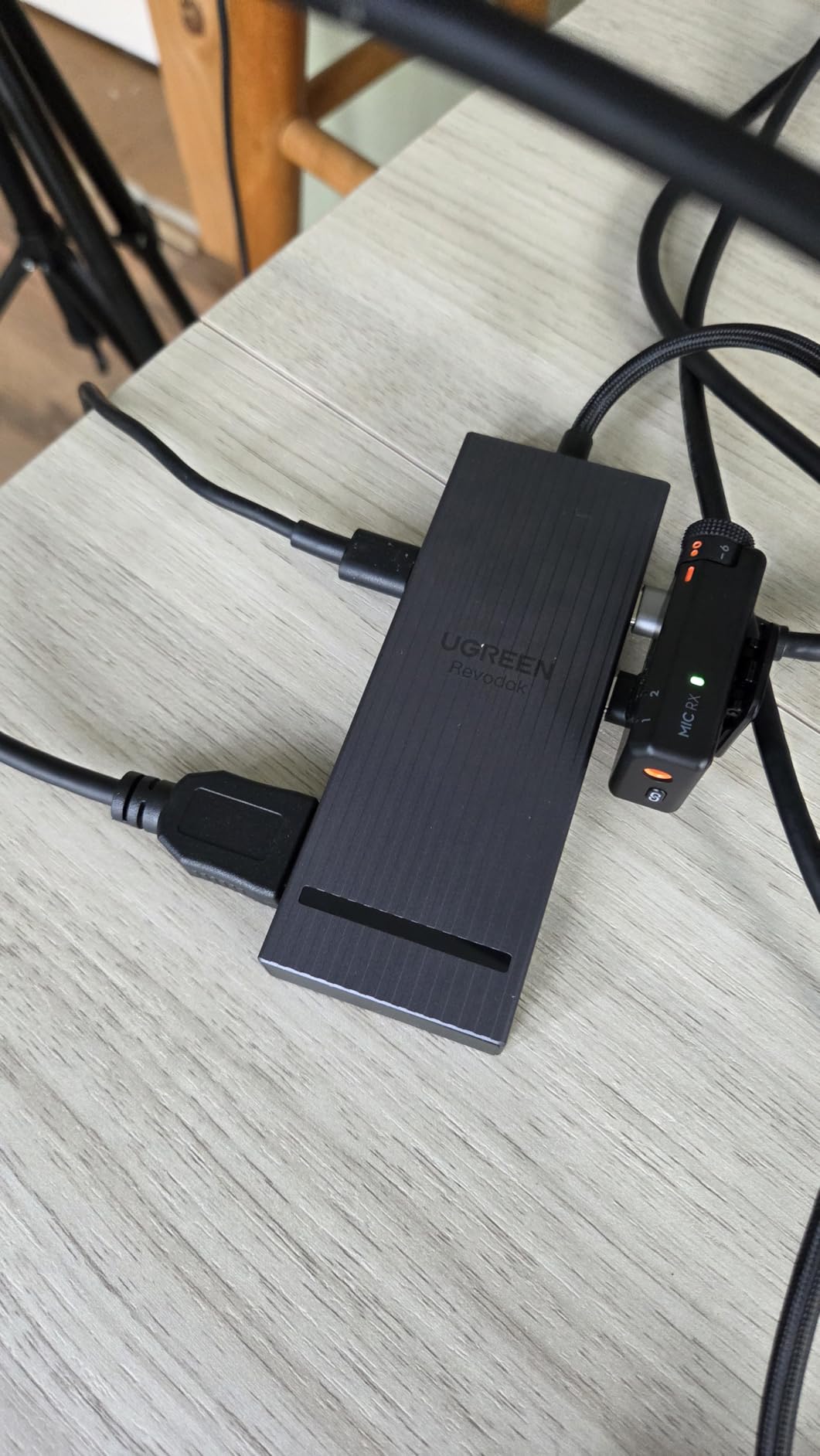
The aluminum construction feels premium despite the low price. At just 91 grams, it is one of the lightest docks in this roundup. The compact form factor makes it perfect for slipping into a laptop sleeve or backpack pocket. I carried it around for a week and barely noticed it was there.
The limitations are the same as its larger sibling. macOS mirrors content on both displays rather than extending them. The USB ports are data-only, so no charging or video output through them. The power adapter is also not included, though most users will already have a compatible USB-C charger from their laptop.
Who Should Buy the UGREEN 7-in-1 Dock
This is the perfect starter dock for anyone on a strict budget. Students, freelancers, and first-time dock buyers will get excellent value. If you just need dual 4K monitors, fast USB data transfer, and laptop charging, this dock does all three reliably for less than $30.
It is also a great secondary dock to keep in a travel bag or at a secondary workstation. The lightweight aluminum build and compact size make it ideal for anyone who works from multiple locations. Compatible with ThinkPad, ZenBook, Chromebook, and Surface laptops out of the box.
What You Need to Supply
The power adapter and charging cable are not included, so you need a USB-C PD charger rated for your laptop’s power requirements. Most modern laptops ship with a compatible charger, so you can use your existing one. The dock works with both Windows dual-screen mode and macOS mirror mode, but Mac users will see identical content on both external displays rather than extended desktop space.
How to Choose the Best USB-C Docking Station in 2026?
Choosing the right USB-C docking station comes down to understanding your specific needs and matching them to the right technology. I have broken down the most important factors to consider before making your decision.
USB-C vs Thunderbolt 4 vs Thunderbolt 5
Standard USB-C docks typically offer 10Gbps data transfer and use Alt Mode for video output. They are the most affordable option and work with virtually any USB-C laptop. Thunderbolt 4 docks deliver 40Gbps bandwidth, support dual 4K displays natively, and allow daisy-chaining up to six devices. Thunderbolt 5 is the newest standard, offering 80Gbps bandwidth (up to 120Gbps for displays), support for 8K displays, and improved power delivery up to 140W.
If you have a Thunderbolt 4 or 5 laptop, investing in a matching dock gives you significantly more bandwidth and display flexibility. If your laptop only has standard USB-C, a USB-C dock will serve you well at a lower cost. Check your laptop specifications to see which standard it supports before buying.
Power Delivery Requirements
Power delivery determines whether your dock can keep your laptop charged while connected. Most ultrabooks need 65W or less. Mainstream laptops like the Dell XPS 15 or MacBook Pro 14 typically need 85W to 100W. High-end workstations and 16-inch MacBook Pro models benefit from 140W charging.
I recommend choosing a dock with at least 15W more power delivery than your laptop’s original charger. This ensures stable charging even when the dock is powering peripherals and driving multiple displays. All 10 docks in this roundup offer at least 85W, which covers the majority of laptops on the market.
Display Support and Multi-Monitor Considerations
Display support is where docks vary the most. Standard USB-C docks with Alt Mode typically support one or two displays via HDMI at up to 4K. Thunderbolt 4 docks can drive dual 4K displays at 60Hz. Thunderbolt 5 docks can handle dual 8K or dual 4K at high refresh rates.
If you need three or more displays, DisplayLink technology (used in the Plugable Triple Display dock) is your best option. DisplayLink works across macOS, Windows, and ChromeOS, but requires driver installation and has a small CPU overhead. For Mac users specifically, base M1, M2, and M3 chips are limited to a single external display through native USB-C output. Only Pro and Max variants support dual displays natively.
Port Selection
Think about what you actually connect to your dock day-to-day. Most users need at least two USB-A ports for keyboard and mouse, one USB-C port for peripherals or phone charging, an HDMI port for external monitors, an Ethernet port for wired networking, and an SD card reader for photography.
Premium docks like the Anker Prime TB5 and Plugable TB5 offer 14 or more ports, which is ideal for complex workstation setups. Budget hubs like the UGREEN 7-in-1 offer fewer ports but cover the essentials. Match the port count to your actual usage rather than paying for ports you will never use.
Build Quality and Long-Term Reliability
Forum users on Reddit consistently report that aluminum-built docks from brands like Anker, Satechi, and Plugable outlast cheaper plastic alternatives. Heat management is a real concern. Docks with active cooling (like the Anker Prime TB5) or fanless designs (like the Plugable TB5) handle sustained loads better than passive designs without proper thermal management.
Warranty length is also a reliability indicator. The UGREEN docks offer 24-month warranties, Plugable includes 2-year coverage with lifetime technical support, and Anker provides 18 to 24 months depending on the model. Brands that stand behind their products with longer warranties tend to use better internal components.
Mac vs Windows Compatibility
Compatibility is the single biggest source of frustration for dock buyers. Before purchasing, verify that your laptop supports the dock’s display technology. Standard USB-C docks using Alt Mode will mirror displays on macOS rather than extending them. Thunderbolt docks require Thunderbolt ports on your laptop. DisplayLink docks work everywhere but need driver installation.
For Mac users who need extended multi-monitor support, DisplayLink is the most reliable solution. For Windows users, nearly any dock in this roundup will work well. Linux users should note that several docks in this guide are not Linux-compatible, particularly the Anker models.
FAQs
What is the difference between a USB-C hub and a USB-C docking station?
A USB-C hub is a compact, portable device that adds a few extra ports like USB-A, HDMI, and SD card readers. A USB-C docking station is a larger device that provides more ports, higher power delivery, multi-monitor support, and Ethernet connectivity. Docks often include their own power adapter and are designed for permanent desk setups, while hubs draw power from the laptop and are meant for travel.
How do I choose the right USB-C hub for my laptop?
Start by checking your laptop’s USB-C port capabilities: does it support Thunderbolt 4, Thunderbolt 5, or standard USB-C with DisplayPort Alt Mode? Then determine how many monitors you need, how much power delivery your laptop requires, and which ports you use daily. Match those requirements to a dock’s specifications, and verify OS compatibility since macOS handles multi-monitor output differently than Windows.
What is Thunderbolt 5 and is it worth it?
Thunderbolt 5 is the latest connectivity standard offering 80Gbps bidirectional bandwidth, with up to 120Gbps for display traffic. It supports dual 8K displays, 144Hz 4K gaming, and up to 140W power delivery. It is worth it if you have a Thunderbolt 5 laptop, work with 8K video, or need maximum bandwidth for external storage arrays. If your laptop only has Thunderbolt 4 or standard USB-C, a Thunderbolt 5 dock will work but you will not get the full speed benefits.
How much power delivery do I need from a USB-C dock?
Most ultrabooks need 65W or less, mainstream laptops need 85W to 100W, and high-end workstations need 100W to 140W. Check your laptop’s original charger wattage and choose a dock that delivers at least that much power. Docks with higher PD ratings than your laptop requires are safe to use, as the laptop will only draw the power it needs.
Can I connect multiple monitors to a USB-C docking station?
Yes, most USB-C docking stations support at least one external monitor, and many support dual or triple displays. Thunderbolt 4 docks typically handle dual 4K at 60Hz. DisplayLink docks like the Plugable Triple Display can drive up to three monitors on almost any laptop including MacBooks. Note that MacBooks with base M1, M2, or M3 chips are limited to a single external display through native USB-C output, so you need DisplayLink technology for multi-monitor support.
Final Thoughts on the Best USB-C Docking Stations for 2026
After testing all 10 docks, the Anker Prime TB5 stands out as the best USB-C docking station for power users who want maximum performance and connectivity. The WAVLINK Thunderbolt 4 Dock offers the best overall value with certified Thunderbolt 4 and dual 4K HDMI at a reasonable price. For budget-conscious buyers, the UGREEN 7-in-1 delivers dual 4K output and 100W charging for under $30.
The right dock for you depends on your laptop, your display needs, and your budget. Match your laptop’s connectivity standard, verify multi-monitor support for your operating system, and choose a dock with enough power delivery to keep your laptop charged under load. Any of the 10 docks in this guide will serve you well when paired with the right setup.